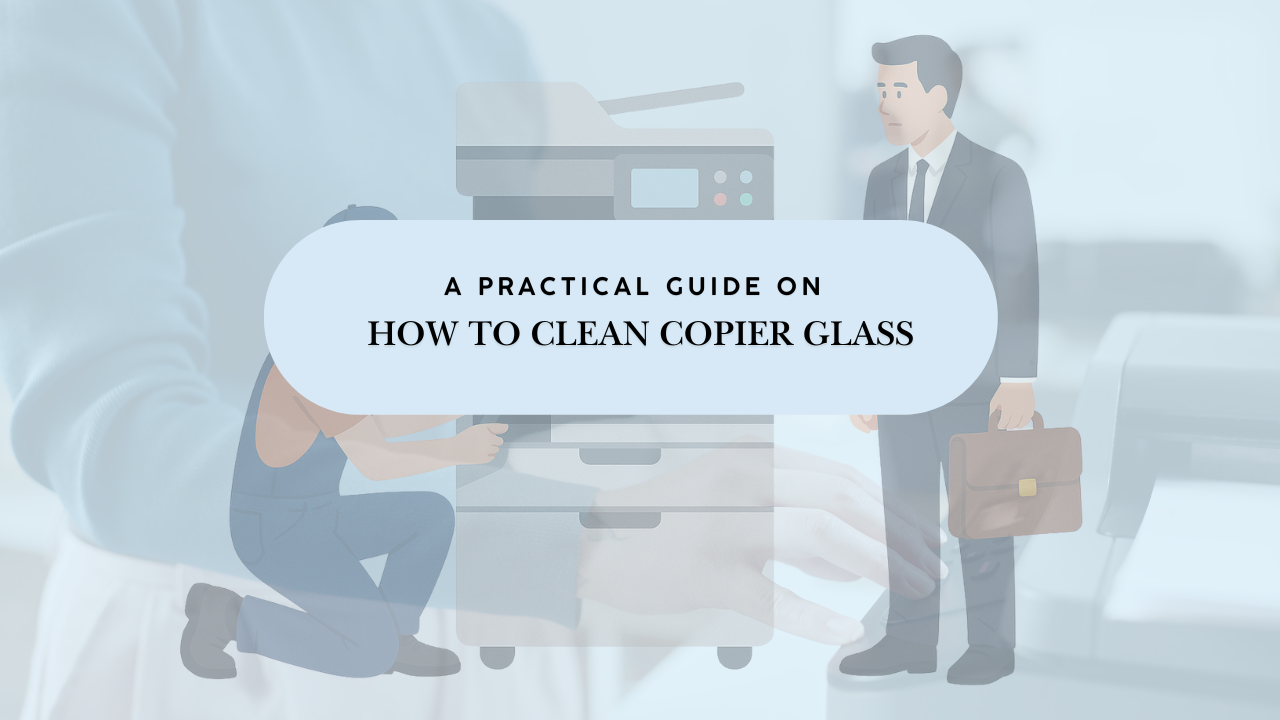
This guide provides business-focused steps, maintenance tips, and hygiene best practices to keep your devices running efficiently.
Why You Should Prioritize Copier Cleaning
Regular cleaning is more than cosmetic. A dirty copier can lead to:
- Poor-quality copies, image quality, and scans
- Paper jams and mechanical issues
- Increased maintenance costs
- Employee exposure to germs on frequently touched surfaces
Incorporating cleaning into office protocols ensures both document quality and employee health.
Step-by-Step Cleaning Guide For Copiers

Step 1: Turn Off and Unplug the Copier
- Power down the machine and unplug it before cleaning to prevent accidents or accidental copying.
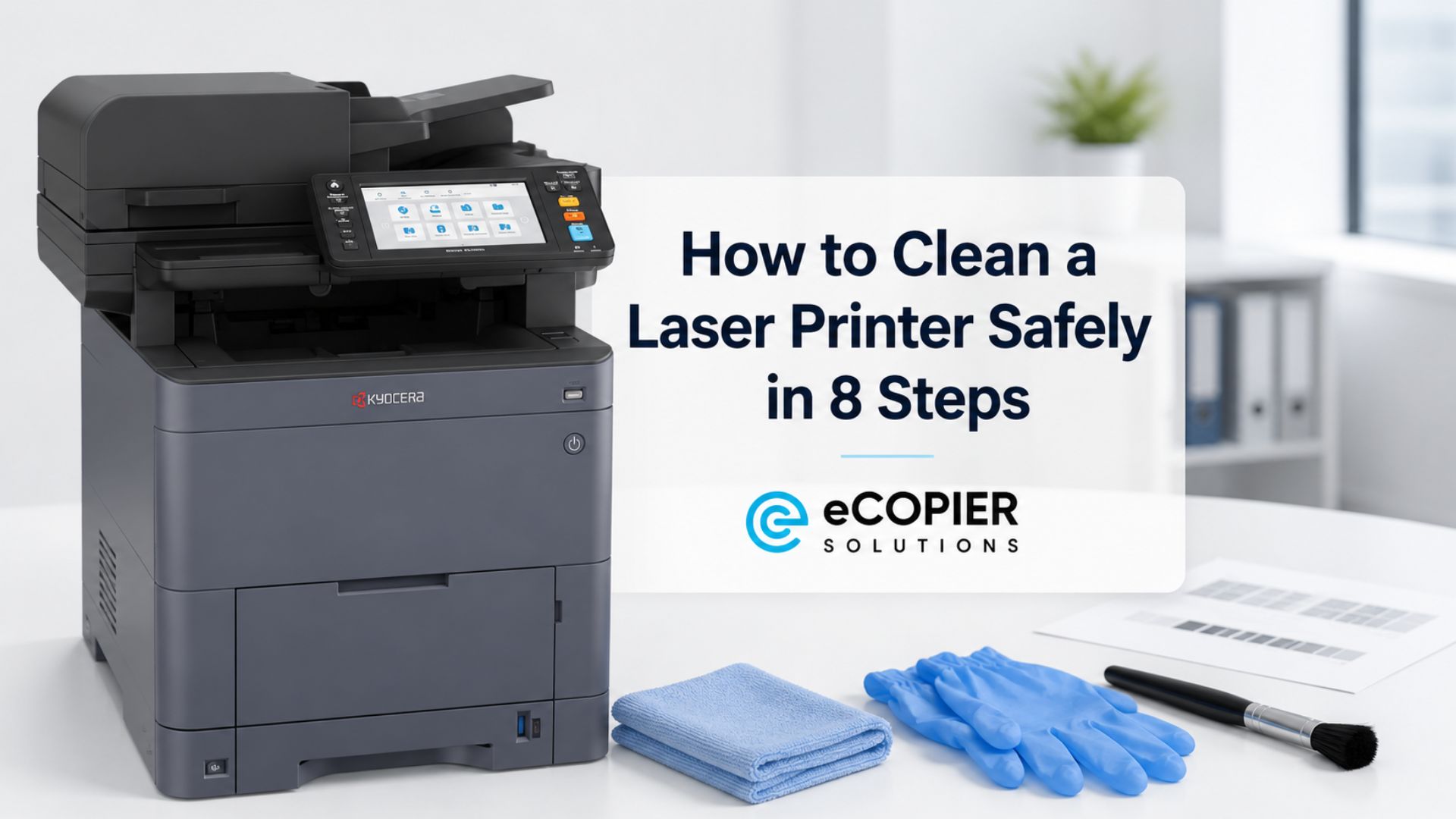
Step 2: Gather Cleaning Supplies
- Soft, lint-free microfiber cloths. It would be best if you did not use paper towels to clean.
- Mild glass cleaner or 70% isopropyl alcohol solution
- Cotton swabs for tight corners
- Gloves to avoid fingerprints
Tip: Spray cleaner on the cloth, not directly on the glass or OP panel.
Step 3: Sanitize the OP Panel
- The OP panel is touched constantly and can harbor germs.
- Dampen a lint-free cloth or a soft cloth with alcohol solution and wipe the screen and buttons gently. Do not use other cleaning agents other than water or mild detergent.
- Ideally, disinfect after every use or at minimum daily.
Step 4: Clean the Copier Glass
- Use circular motions to remove fingerprints, smudges, and toner residue.
- Focus on edges and corners where dust accumulates.
- For heavy residue, a lightly dampened cloth with alcohol or a safe glass cleaner works best.
Step 5: Dust the External Surfaces
- Weekly dusting prevents buildup that can lead to skewed prints and paper jams.
- Wipe the document feeder, top cover, paper tray, and surrounding surfaces with a lint-free cloth.
Step 6: Organize the Surrounding Area
- Keep staples, paperclips, and office supplies away from the copier.
- A clutter-free space prevents foreign objects from entering the device and causing jams.
Step 7: Dry the Glass and OP Panel
- Use a dry section of the microfiber cloth to remove moisture and streaks.
- Inspect under bright light to ensure surfaces are spotless.
Step 8: Test the Copier
- Plug in the machine and run a test copy.
- Re-clean any streaked areas if necessary.
Step 9: Establish Office Cleaning Protocols
- Assign staff responsibility for routine cleaning.
- Post a visual guide near the device.
- Send reminders via email or team communication apps.
- Incorporate into staff training programs.
Step 10: Call a Professional if Needed
- Persistent streaks or mechanical issues may require technician intervention.
- Regular maintenance checks as part of a Managed Print Service (MPS) program help extend device lifespan.
Maintenance Tips for Businesses
Proper copier maintenance reduces downtime and operational costs:
- Environment: Keep the office dust-free and avoid food or drinks near machines.
- Supplies: Use quality paper and toner recommended by the manufacturer.
- Internal Checks: Monitor rollers, sensors, and document feeders for wear.
- MPS Integration: Regular professional service call ensures consistent print quality and device longevity.
Benefits of Managed Print Services (MPS)
For business owners, MPS provides measurable advantages:
- Cost efficiency: Optimize toner, paper, and energy usage
- Reduced downtime: Scheduled service and remote monitoring prevent interruptions and immediate copier repair
- Document security: Protect sensitive files with centralized management
- Streamlined workflow: Simplify printing, scanning, and copying across departments
- Sustainability: Reduce waste and environmental impact through optimized printing
Integrating good cleaning process and maintenance protocols with MPS ensures your office equipment is reliable, safe, and cost-effective.
Conclusion
For businesses, clean copier glass and OP panels are critical for workflow efficiency, employee safety, and professional-quality output. By combining daily cleaning, organized workspaces, team training, and professional maintenance, you can prevent common issues and extend the life of your office equipment.





.webp)

.png)