Paper still shows up everywhere, from offices and homes to schools, dealerships, healthcare offices, and small businesses. So, what is a document scanner, and why does it still matter? A scanner helps turn paper into digital files that are easier to store, send, search, and manage.
In this article, we’ll explain what a document scanner does, how it works, and which type may fit your needs. We’ll also cover key features, common uses, and how scanning fits into a better office workflow.
What Is a Document Scanner?
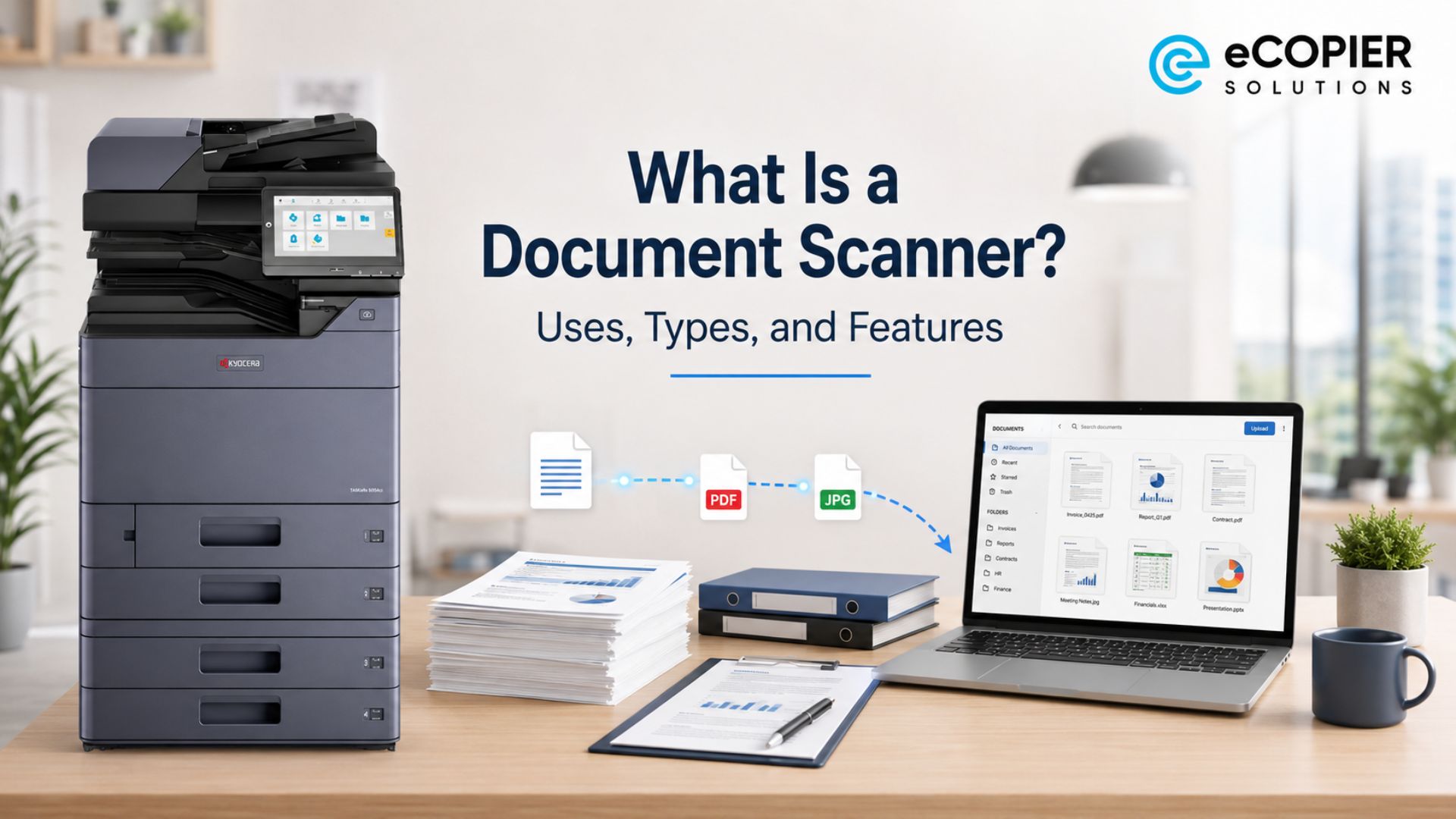
A document scanner is a device that captures paper documents and turns them into digital files. These files can be PDFs, images, searchable PDFs, or editable text files when OCR is used.
Some scanners are standalone devices, while many offices use scanning features built into multifunction printers or copiers. In fact, Quocirca found that MFP scanning is the most common document digitization method, with 65% using it regularly. For many businesses, a strong document scanner machine may already be part of their copier setup.
How Does a Document Scanner Work?
A document scanner works by shining light on a page, capturing the text or image with a sensor, and turning that scan into a digital file. The scanner software then saves or sends the file to the location you choose.
You can typically pick settings like color, black and white, resolution, file type, and destination. For example, you may save a file to your computer, email, cloud folder, or network folder. An OCR scanner can also read typed text and turn it into searchable or editable content.
What Are Document Scanners Used For?
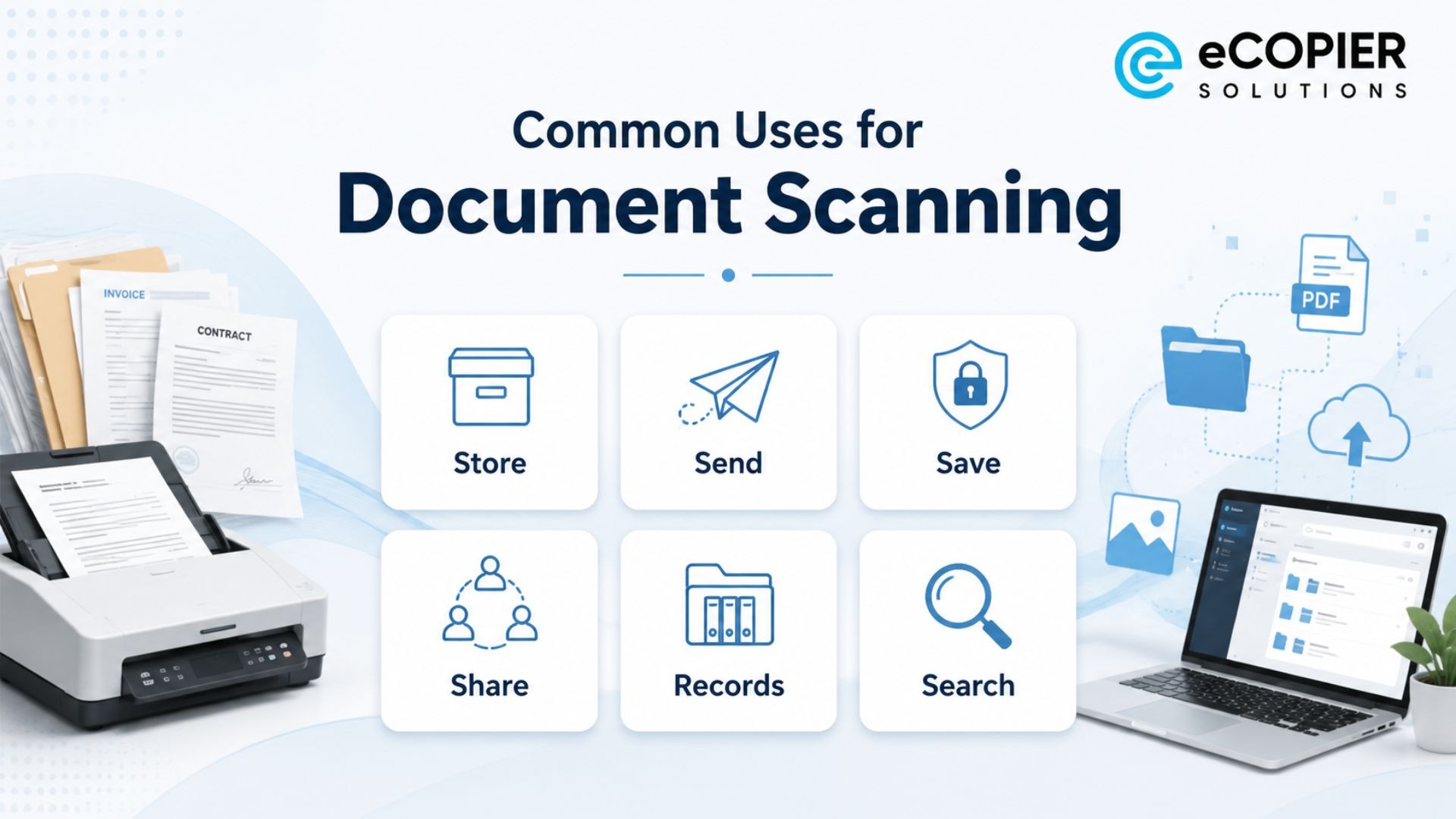
Document scanners are used to turn personal and business paperwork into digital files. This helps with storage, sharing, recordkeeping, and faster access to important information.
For example, people scan tax records, invoices, contracts, HR forms, insurance papers, school documents, medical forms, signed agreements, IDs, receipts, and customer files.
These are the most common uses:
- Storing documents without keeping paper copies everywhere
- Sending signed forms by email
- Saving invoices, receipts, and tax documents
- Creating digital customer or employee records
- Sharing files with teams, clients, or vendors
- Moving paper documents into a document management system
Document scanning helps teams keep files organized, easy to share, and easier to find when they need them later.
Types of Document Scanners
The right scanner depends on document volume, page type, space, and workflow. A home user may only need a simple device for receipts and personal records. A busy office may need faster scanning, better paper handling, and shared access for the whole team.
Okay, now let’s break it down further. These are the main types of document scanners to know.
Flatbed Scanner
A flatbed scanner has a glass surface where you place the paper face down. It works well for books, IDs, fragile papers, photos, and odd-shaped documents. It is not always the fastest choice, but it is useful when you need careful scanning.
Sheetfed Scanner
A sheetfed scanner pulls pages through the machine. It is a better fit for stacks of loose paper, forms, contracts, and invoices. This type is usually faster than a flatbed model for daily paperwork.
Portable Scanner
A portable scanner is small and easy to move. It can work well for travel, remote work, field teams, or occasional scanning. It is usually not the best fit for large office batches, but it can be helpful when space is limited.
MFP Scanner
An MFP scanner is part of a multifunction printer that can scan, print, copy, and sometimes fax. This is often a strong fit for offices that want one shared machine instead of separate devices for every task. It can help teams scan paperwork, send files, print documents, and make copies from one central device. For many businesses, this setup saves space and makes daily document work easier to manage.
Office Scanner
An office scanner is built for heavier daily use, faster scan speeds, better paper handling, and shared team workflows. An office that scans large batches each day may need a document scanner with a high-volume setup with stronger paper handling, faster speeds, and support for shared team use.
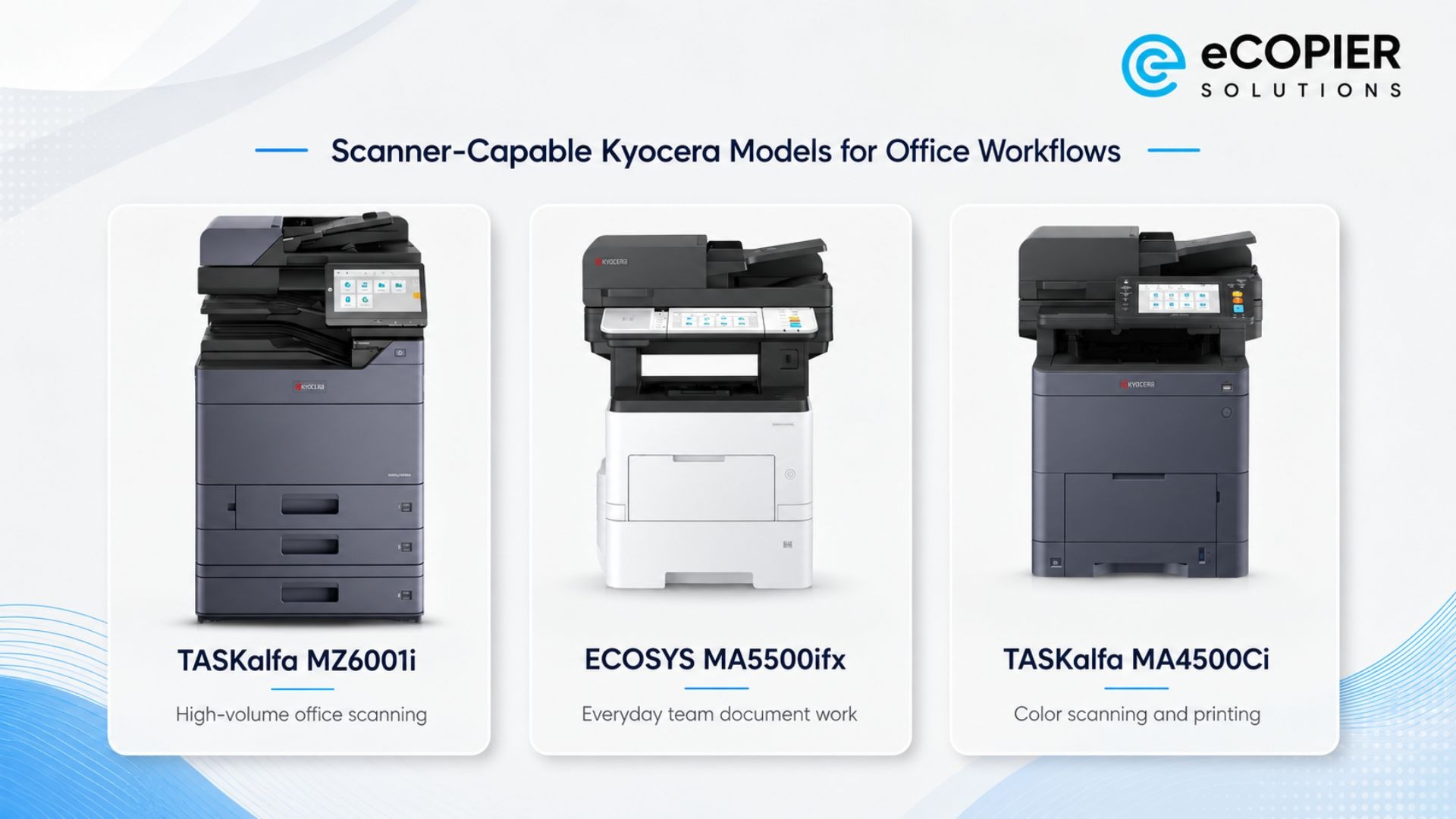
For example, scanner-capable Kyocera models like the TASKalfa MZ6001i can support offices that scan large batches of paperwork and need faster movement from paper to digital files.
Document Scanner Features That Matter Most
Scanner features can look technical at first, but most of them connect to simple questions. How many pages do you scan? Do you need both sides? Do you want searchable files?
Epson lists 300 dpi as a suitable scan resolution for OCR, which is a useful starting point for many office documents. These are the main features to compare before choosing a scanner.
If you scan often, an automatic document feeder can save a lot of time. A wireless scanner can also help if several people need to send files from the same device.
Document Scanner vs. Printer vs All-in-One Printer
A scanner and a printer are not the same thing. A printer creates paper copies from digital files. A scanner turns paper documents into digital files.
An all-in-one printer can usually do both, which is why many homes and offices use one machine for printing, scanning, and copying. These are the key differences.
For businesses, a shared MFP typically makes more sense than several small devices spread across the office.
Why Document Scanning Still Matters for Businesses
Document scanning still matters because many companies still receive paper from customers, vendors, employees, and outside partners. Even when a business wants to go digital, scanning is often the bridge between paper files and digital workflows.
Quocirca also found that 75% of organizations are speeding up paper digitization plans. At the same time, only 11% of organizations say they are fully paperless. That gap matters. It means most offices still need a practical way to handle paper while moving more work online.
Scanned files can support faster access, better organization, easier sharing, and less physical storage. Cloud document capture can also help teams route files into the right folders, systems, or workflows.
How to Choose the Right Document Scanner
Choosing the right document scanner starts with your daily workflow, rather than the device itself. A scanner that works for one person at home may slow down a busy office. Too costly? Not always, if the right setup saves time, reduces manual filing, and keeps documents easier to find.
These are the questions to ask before you choose:
- How many pages do you scan each day?
- Do you scan single pages or stacks of documents?
- Do you need color scans, black-and-white scans, or both?
- Do you need OCR or searchable PDFs?
- Do you need scan-to-email, scan-to-folder, or cloud storage?
- Will one person use it, or will the whole team share it?
- Who will handle setup, maintenance, and support?
Scanning capability is the top MPS provider differentiator, rated very important by 50% of organizations. If you need to scan documents to PDF every day, the scanner should be easy to use and dependable.
If your team does not want to buy or manage equipment, searching for document scanner services near me can help you compare local or managed options, but businesses should also check whether a supported MFP lease can handle the same scanning needs in-house.
How eCopier Solutions Fits Into Document Scanning Workflows
If your team scans documents every day, the scanner itself is only one part of the job. You also have to think about setup, shared access, scan-to-email, folders, toner, repairs, and what happens when the machine stops working during a busy day.
That is where we can help. At eCopier Solutions, we work with businesses that want less stress around their office equipment. You may need a scanner for documents, but you may also need a dependable machine that supports scanning, printing, copying, and daily document work.
Depending on your workflow, our scanner-capable Kyocera models like the TASKalfa MZ6001i, ECOSYS MA5500ifx, and TASKalfa MA4500Ci can help your team manage paperwork from one setup. With us, you can also keep equipment, toner, service, and support under one roof.
Build a quote with eCopier Solutions today or call us at (800) 898-1402 to find a copier and printer setup that fits the way your team works.
FAQs
Is a Scanner the Same as a Printer?
No, a scanner is not the same as a printer. A scanner turns paper into digital files, while a printer turns digital files into paper.
Which Printer and Scanner Is Best for Home Use?
The best printer and scanner for most homes is usually an all-in-one model with simple scanning, wireless connection, and PDF support. It should be easy to set up and small enough for your space.
When You Scan a Document, Where Does It Go on Your Computer?
When you scan a document, it usually goes to a default scans folder, downloads folder, desktop, email, cloud folder, or a location chosen in the scanner software.
What All-in-One Printer Has the Best Scanner?
The all-in-one printer with the best scanner depends on scan quality, ADF support, duplex scanning, OCR, and how often you scan. For offices, support and maintenance also matter.
Do You Need a Separate Scanner If You Already Have a Copier?
Yes, you may need a separate scanner if your copier only makes copies. If it has built-in scanning, scan-to-email, ADF, and duplex scanning, then a separate scanner may not be needed.




.webp)

.png)