.png)
AirPrint setup is pretty much a straight-to-the-point setup and works automatically on iPhones. All you have to do is connect your iPhone and printer to the same Wi-Fi network, tap Share → Print, select your printer, and print. If it doesn’t work, it’s usually a network issue, not your iPhone.
How to Set Up AirPrint on iPhone (Fastest Method)
AirPrint setup on iPhone does not require installation. It works automatically once your printer is connected.
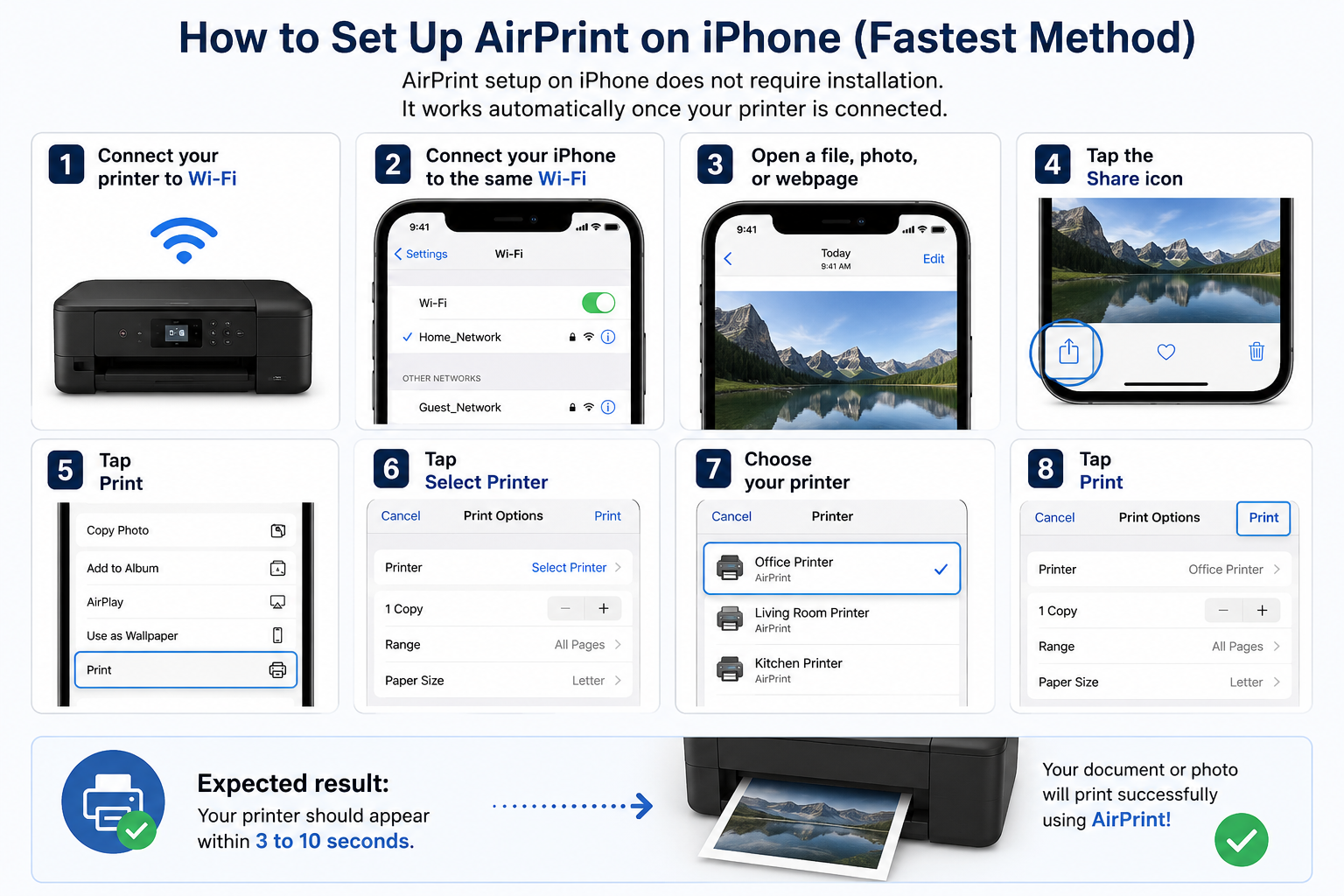
Steps:
- Connect your printer to Wi-Fi
- Connect your iPhone to the same Wi-Fi
- Open a file, photo, or webpage
- Tap the Share icon
- Tap Print
- Tap Select Printer
- Choose your printer
- Tap Print
Expected result:
Your printer should appear within 3 to 10 seconds.
How Convenient is AirPrint on iPhone?
AirPrint is Apple’s built-in wireless printing feature. It lets you print from an iPhone without installing drivers or software.
What AirPrint does:
- Finds printers on your Wi-Fi network
- Sends print jobs instantly
- Works with apps like Photos, Safari, and Mail
Why it matters:
Apple reports that AirPrint works with thousands of printer models. If your printer supports it, setup takes under 2 minutes.
AirPrint Setup Requirements (Most Miss This)
AirPrint setup on iPhone fails if one of these is missing.
Checklist:
- iPhone on Wi-Fi, not mobile data
- Printer supports AirPrint
- Both devices on the same network name (SSID)
- Printer is powered on and not in sleep mode
Common mistake:
Using a guest Wi-Fi network. AirPrint often does not work across guest networks.
Why Your AirPrint Is Not Working
AirPrint setup on iPhone usually fails due to network issues.
Top Causes and Fixes:
Quick reset fix (works in most cases):
- Restart iPhone
- Restart printer
- Restart Wi-Fi router
How to Know If Your Printer Supports AirPrint
AirPrint setup on iPhone only works with supported printers.
Check using:
- Printer box or manual
- Manufacturer website
- Test print screen on iPhone
If your printer appears in “Select Printer,” it supports AirPrint.
What to Do If Your Printer Does Not Support AirPrint
AirPrint setup on iPhone still has workarounds.
Option 1: Use Manufacturer Apps
- HP Smart
- Canon PRINT
- Epson iPrint
These apps allow wireless printing without AirPrint.
Option 2: Share Printer via Computer
- Connect printer to a Mac or PC
- Enable printer sharing
- Print through the network
Option 3: Upgrade Your Printer
Modern printers:
- Connect faster
- Support mobile printing
- Reduce setup issues
Explore options at:
https://www.ecopiersolutions.com/
AirPrint Setup Tips for Reliable Printing
AirPrint setup on iPhone works best with a stable network.
Best practices:
- Keep printer within 30 feet of router
- Use 5GHz Wi-Fi if available
- Update printer firmware regularly
- Avoid network switching while printing
Why it matters:
Weak Wi-Fi is the #1 reason AirPrint fails.
Real Example: 5-Minute Fix That Works
A homeowner upgraded their router and AirPrint stopped working.
Problem: Printer not showing
Cause: Printer still connected to old network
Fix:
- Reconnect printer to new Wi-Fi
- Restart iPhone
Result: AirPrint restored in under 5 minutes
When to Get Help
AirPrint setup on iPhone may need expert help if:
- Printer connects but never prints
- Network uses advanced settings (VLANs, firewalls)
- Multiple devices fail to detect the printer
Professional setup ensures:
- Stable connections
- Faster printing
- Fewer interruptions
FAQs About AirPrint Setup on iPhone
Why can’t my iPhone find my printer?
Your iPhone and printer are likely on different Wi-Fi networks.
Does AirPrint need Wi-Fi?
Yes. AirPrint does not work over cellular data.
Can I use AirPrint without a compatible printer?
No. Use a manufacturer app or shared printer instead.
How long should AirPrint take to detect a printer?
Usually 3 to 10 seconds.
Why is AirPrint slow?
Weak Wi-Fi or network congestion.
Final Answer
AirPrint setup on iPhone is automatic. Connect both devices to the same Wi-Fi network, select the printer, and print. If it fails, fix the network first, not the iPhone.










.webp)