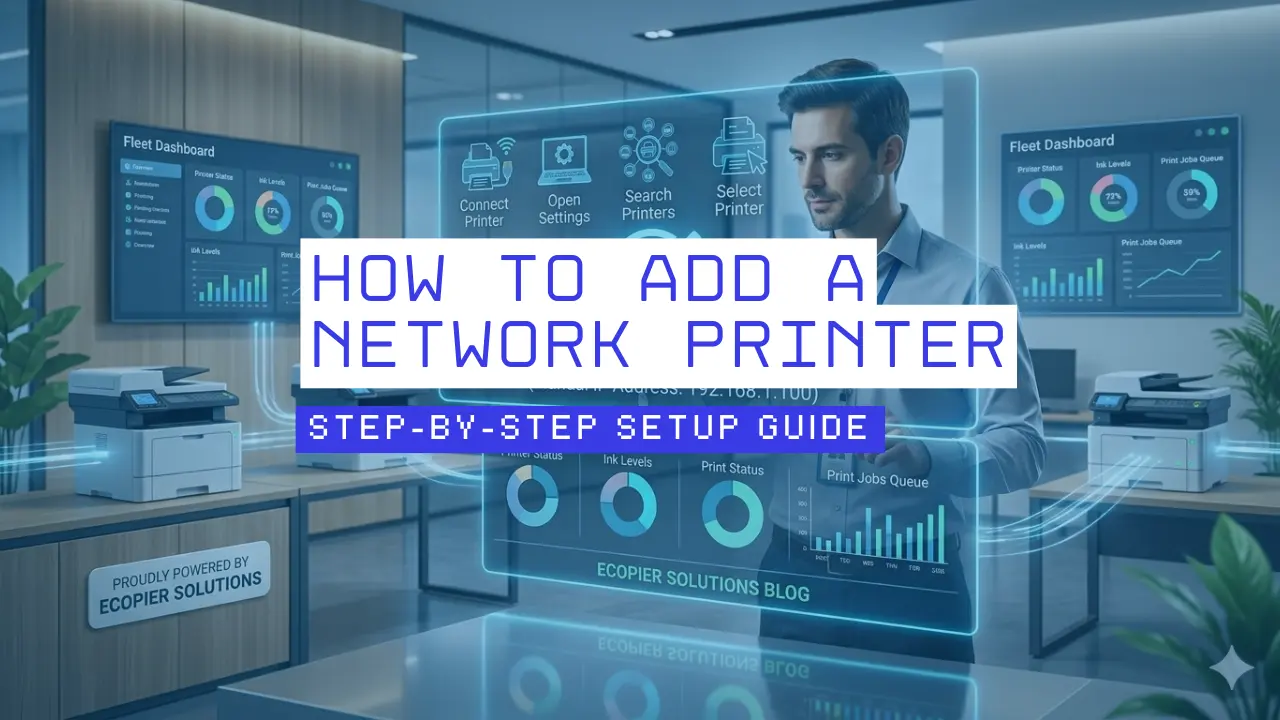
To add a network printer, connect the printer to the same Wi-Fi or Ethernet network as your computer, then add it through your device’s printer settings. Most modern printers are detected automatically within a few minutes.
If the printer does not appear:
- Restart the printer and router
- Check both devices are on the same network
- Install the latest printer drivers
- Use the printer’s IP address manually
Quick Overview: How to Add a Network Printer
Adding a network printer usually takes less than 10 minutes. The printer must be connected to the same Wi-Fi or Ethernet network as your computer, phone, or tablet.
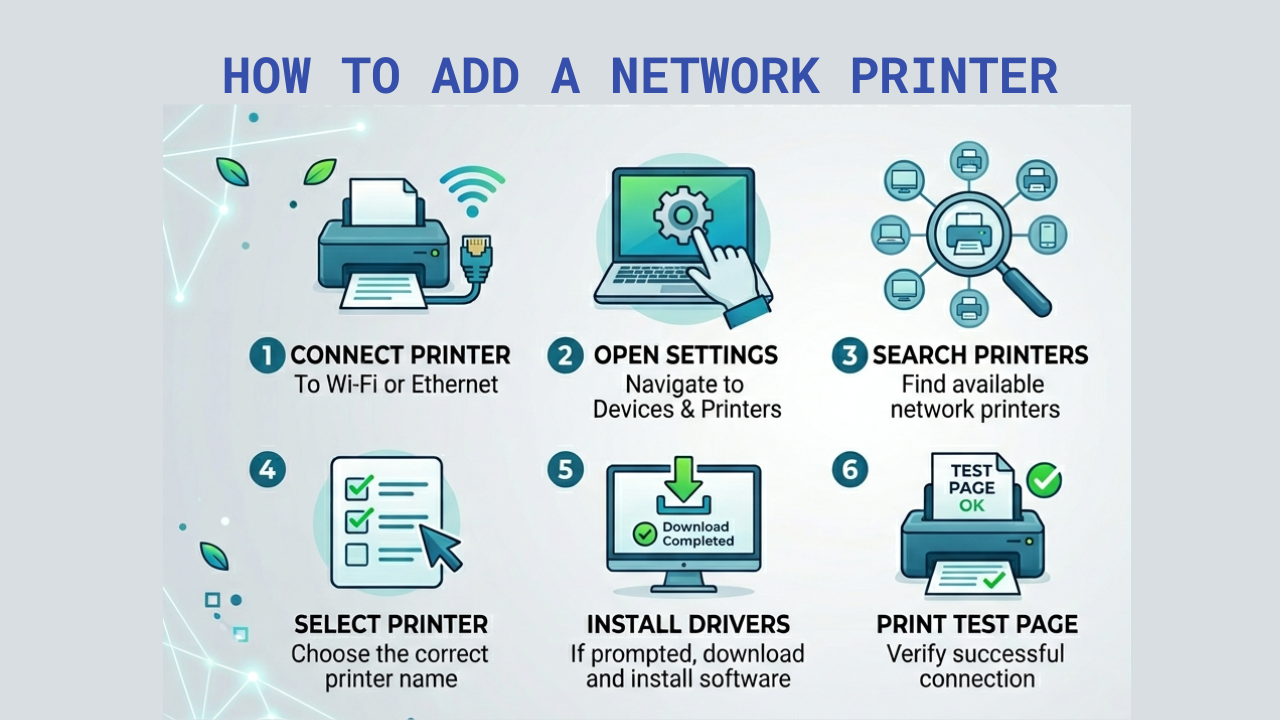
Basic Process
- Connect the printer to Wi-Fi or Ethernet
- Open printer settings on your device
- Search for available printers
- Select the printer
- Install drivers if prompted
- Print a test page
If the printer does not appear:
- Restart the printer
- Restart the router
- Check both devices are on the same network
- Add the printer manually using its IP address
A network printer connects to your Wi-Fi or office network instead of directly through USB, allowing multiple devices to print at the same time.
Most modern printers support Wi-Fi, Ethernet, and mobile printing, but setup problems often happen when the printer and computer are connected to different networks.
How to Connect a Printer to Wi-Fi
Most offices use wireless printer setup because it reduces cables and allows flexible placement.
Wi-Fi Printer Setup Steps
- Turn on the printer
- Open the printer’s Network or Wireless settings
- Select “Wireless Setup Wizard”
- Choose your Wi-Fi network
- Enter the Wi-Fi password
- Wait for the connection confirmation
Most modern printers complete setup in under 5 minutes.
Why Wi-Fi Setup Sometimes Fails
Wireless printer setup commonly fails because:
- The password was entered incorrectly
- The printer only supports 2.4 GHz Wi-Fi
- The router blocks device discovery
- The signal is weak
Older printers often cannot connect to 5 GHz-only networks.
How to Connect a Printer Using Ethernet
Ethernet printers use a wired network connection instead of Wi-Fi.
This setup is more stable for:
- Offices
- High-volume printing
- Shared copier systems
- Large print jobs
Ethernet Printer Setup Steps
- Connect the Ethernet cable to the printer
- Plug the other end into the router or switch
- Turn on the printer
- Wait for the network connection
Most routers automatically assign the printer an IP address.
Ethernet printing usually has:
- Faster response times
- Fewer disconnects
- Better reliability
- Lower latency
How to Add a Network Printer on Windows 11
Windows 11 automatically detects many printers on the same network.
Windows 11 Printer Setup
- Open Settings
- Select Bluetooth & devices
- Click Printers & scanners
- Select Add device
- Choose the printer from the list
- Click Add device
Windows usually installs drivers automatically.
If Windows Cannot Find the Printer
Try these fixes:
- Restart the printer
- Restart the router
- Disable VPN temporarily
- Update Windows
- Install drivers from the manufacturer website
If needed, you can also add the printer manually using its IP address.
How to Add a Network Printer on Windows 10
The process is similar to Windows 11.
Windows 10 Printer Setup
- Open Control Panel
- Select Devices and Printers
- Click Add a printer
- Wait for Windows to search
- Select the printer
- Finish installation
Windows 10 may display:
“The printer that I want isn’t listed”
If this happens, you can:
- Add the printer by IP address
- Install the printer manually
- Download drivers directly from HP, Brother, Canon, or Epson
How to Add a Network Printer on macOS
macOS supports automatic network printer discovery through AirPrint and Bonjour services.
macOS Printer Setup Steps
- Open System Settings
- Select Printers & Scanners
- Click the + button
- Select the printer
- Click Add
Apple devices often require little configuration if the printer supports AirPrint.
How to Print From iPhone or Android
Most new printers support mobile printing.
iPhone Printing
Apple devices use AirPrint.
To print:
- Open the document or photo
- Tap Share
- Select Print
- Choose the network printer
No extra app is usually required.
Android Printing
Android devices may use:
- Mopria Print Service
- Manufacturer apps
- Built-in Android print support
Popular printer apps include:
- HP Smart
- Canon PRINT
- Epson Smart Panel
- Brother Mobile Connect
Why Your Network Printer Is Offline
“Printer Offline” is one of the most searched printer problems online.
In many cases, the printer is actually powered on but disconnected from the network.
Common Causes of Offline Printer Errors
Restarting the printer fixes many temporary offline issues.
Should You Use a Static IP Address for a Printer?
For most homes, automatic IP addressing works fine.
For offices, static IP addresses are usually better because the printer location never changes on the network.
Static IP setup helps with:
- Shared office printers
- Copier fleets
- Scan-to-folder systems
- Print servers
- Managed print environments
Many businesses use static IPs to reduce recurring offline printer problems.
Why Some Printers Keep Disconnecting From Wi-Fi
This is extremely common with older wireless printers.
Common Reasons Printers Disconnect
- Weak Wi-Fi signal
- Old firmware
- Cheap routers
- Mesh network compatibility problems
- Sleep mode power settings
Brother, HP, and Canon support forums frequently mention sleep mode causing random disconnects.
Moving the printer closer to the router often improves reliability immediately.
Wireless vs Ethernet Printer Connections
Choosing the right connection matters more than most users realize.
For busy offices, Ethernet usually performs better long term.
For home users, Wi-Fi is usually more convenient.
When to Call Printer Support
You may need professional printer support if:
- The printer disappears repeatedly
- Multiple users cannot print
- Scan functions stop working
- Drivers keep failing
- The printer constantly shows offline
Managed print providers can also help configure:
- Shared office printing
- Copier networks
- Scan-to-email
- Secure printing
- Print tracking
Adding a network printer usually takes less than 10 minutes once the printer is connected to the same network as your computer or phone.
Most setup problems come from:
- Incorrect Wi-Fi connections
- Outdated drivers
- Weak signals
- IP address conflicts
Modern printers make setup easier than ever, but stable network configuration still matters for long-term reliability.
For printer installation support, copier setup, or managed print services, visit eCopier Solutions.










.webp)



.png)