

A copier may be leaving your office because the lease is ending, the equipment is being replaced, or the machine is moving to another location. That creates a data issue if the device has handled sensitive documents.
Many multifunction copiers keep information in internal storage, and unplugging the machine or resetting a few settings may leave some of that data behind. Before the device leaves your control, it helps to know what it stores, how erasure works, and when a technician should step in.
We’ll teach you how to do that in this guide.
Do Copy Machines Have Hard Drives?
Yes, many modern copy machines have internal storage, although the exact type depends on the model.
Some multifunction copiers use traditional HDDs, while newer machines may rely on SSDs, flash storage, or another form of nonvolatile memory. Older and more basic devices may have very little persistent storage at all.
That is why we recommend checking the exact make and model instead of assuming every hard drive copy machine has the same internal hardware.
Manufacturers use storage to support print queues, scanned files, fax functions, document boxes, address books, device settings, and other workflows. The amount of information retained can vary quite a bit based on how the copier is configured and used.
What Data Can a Copier Store?
A copier can store document data, user information, destinations, device settings, and other records created during normal printing, scanning, copying, and faxing.
How much stays on the machine depends on the manufacturer, enabled features, and whether your team uses stored-job functions. Some data may only exist temporarily, while other information can remain until someone deletes or sanitizes it.
Here are the common types of data worth checking:
- Images or temporary data from copied documents
- Scanned documents and scan destinations
- Stored or held print jobs
- Fax images and fax records
- Address books and email destinations
- User credentials or authentication information where supported
- Network and device configuration data
- Documents saved intentionally in document boxes or similar storage areas
The uncertainty around this issue is fairly common. In a 2024 survey, 34% of U.S. IT and security decision-makers were unsure whether printers could be completely and securely wiped before resale, recycling, or reuse.
For that reason, disposal and lease returns should be treated as part of your wider copier security and access control process.
How to Wipe a Copier Hard Drive
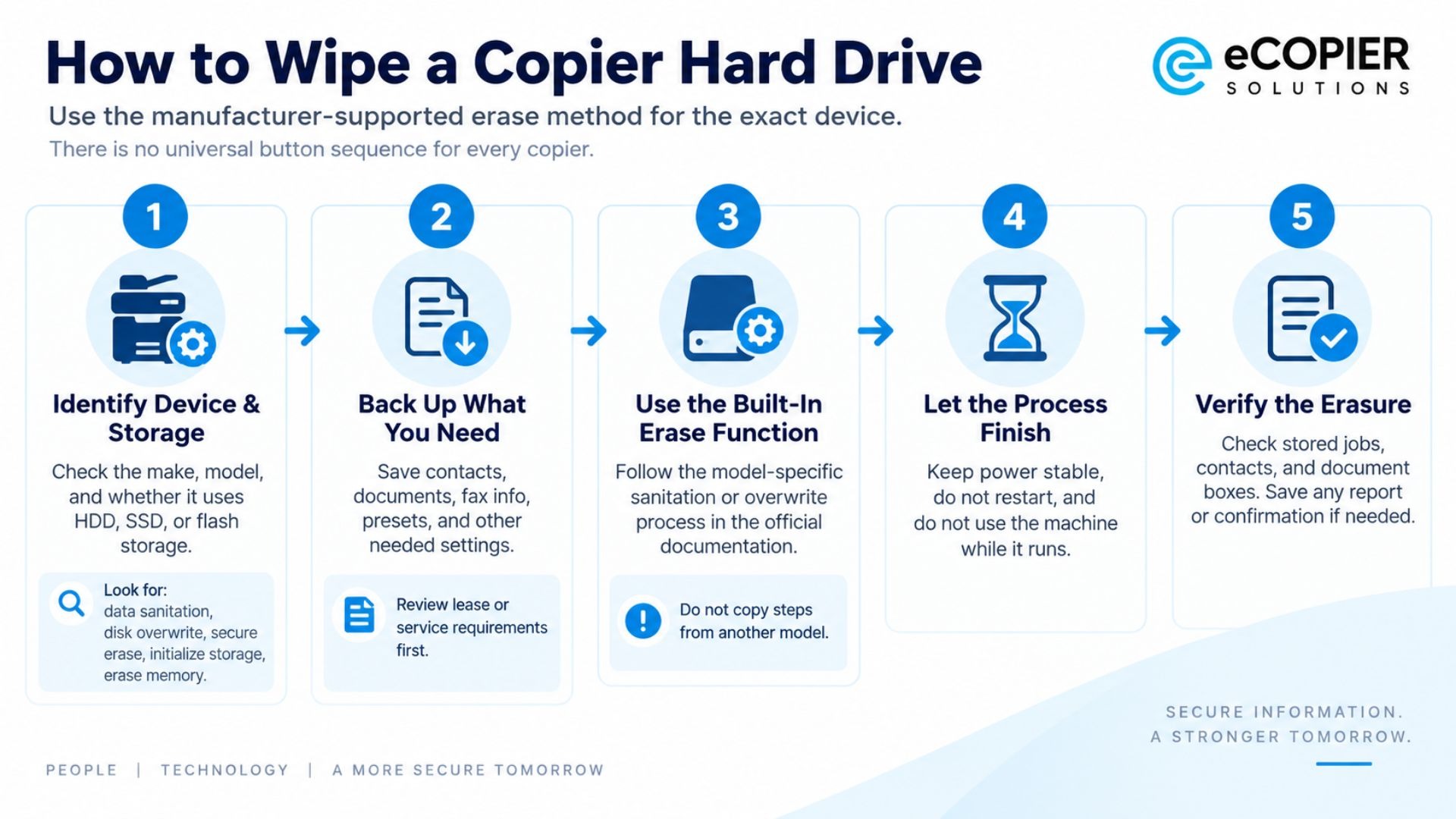
The safest way to erase stored copier data is to identify the exact device and use the manufacturer-supported sanitation or overwrite method for that model.
There is no universal button sequence that works across every copier. Kyocera, Xerox, Ricoh, Toshiba, Canon, Sharp, and other manufacturers use different menus, storage systems, and security functions. The right approach also depends on whether the machine needs to remain operational afterward.
Here are the steps we recommend following:
1. Identify the Make, Model, and Storage Type
Start with the model number, which is usually shown on the front panel, device information screen, or manufacturer label. Then check whether the machine uses an HDD, SSD, flash storage, or another storage system.
If the device uses a copier HDD, review the administrator guide, security guide, support documentation, or device settings for terms such as:
- Data sanitation
- Disk overwrite
- Secure erase
- Initialize storage
- Erase memory
- Out-of-service erase
Manufacturers usually use different wording for similar functions, so matching the instructions to the exact model matters.
2. Back Up Anything the Business Needs to Keep
Before erasing anything, check whether the machine contains contacts, address books, stored documents, fax information, presets, authentication settings, or configuration details your team still needs.
Save those records through the method supported by the manufacturer.
For leased equipment, check the lease or service agreement too. Some providers have specific return requirements, and unauthorized hardware changes could create problems when the machine is collected.
3. Use the Manufacturer-Supported Erase or Sanitize Function
When a built-in sanitation or overwrite feature is available, that is usually the first DIY option we would look for.
Depending on the machine, you may access it through the control panel, administrator interface, or web-based management portal. Follow the instructions for that exact device and security configuration.
Avoid borrowing menu steps from another model just because the interface looks similar. One manufacturer may call the feature secure erase, while another uses disk overwrite or data sanitation.
4. Let the Process Finish Completely
A full overwrite or sanitation process can take time. Drive capacity, device speed, and the selected erase method can all affect how long it runs.
While the process is active:
- Keep the copier connected to reliable power.
- Do not restart it unless the manufacturer specifically tells you to.
- Avoid using the machine until the process finishes.
Interrupting storage sanitation can cause configuration or usability problems on some devices, so we recommend scheduling it when the copier can stay out of service.
5. Verify the Erasure Before the Copier Leaves Your Control
Once the process finishes, check that stored jobs, document boxes, contacts, destinations, and other retained information have actually been removed.
Some machines provide a completion report, sanitation log, confirmation page, or status screen. Keep that documentation if your business has formal security or compliance requirements.
For higher-risk environments, it may also make sense to record when the sanitation took place, who performed it, and which method was used.
Is a Factory Reset Enough to Erase Copier Data?
A factory reset is not always enough to securely erase all data stored by a copier.
On some machines, a factory reset mainly restores configuration settings. Stored document data may be handled separately, which is why the manufacturer's security documentation matters.
There are several common approaches:

There is also a broader security framework behind these choices. NIST SP 800-88 Revision 2 identifies three sanitization categories: Clear, Purge, and Destroy.
Your business may use one of those approaches depending on its security policy, data sensitivity, reuse plans, and device capabilities.
When Should You Wipe a Copier?
You should sanitize a copier when the device or its internal storage is leaving the security environment where its data was originally handled.
Timing matters here because a machine may still contain useful business information even after employees stop actively using it. It is easier to address that data while the device is still under your control.
Common situations include:
- Returning a leased copier
- Selling or donating the machine
- Recycling or disposing of it
- Moving it to another organization or department where access changes
- Replacing its internal storage
- Decommissioning it permanently
Organizations that handle confidential or regulated information may also have their own retention and disposal requirements. At least 25 U.S. states have laws addressing private-sector data-security practices, including requirements or expectations related to secure disposal.
Your own legal, compliance, and security teams should determine which rules apply to your organization.
When Should a Technician Handle the Wipe?
A technician should handle the wipe when the device requires service-level access, hardware changes, or a process your internal team cannot safely complete.
Some machines make sanitation straightforward through an administrator menu. Others can involve firmware, proprietary tools, or storage configurations that make DIY work risky.
Professional help is worth considering when:
- The security or sanitation menu is unavailable.
- Administrator credentials are missing.
- The manufacturer requires service-level access.
- The copier must remain functional after sanitation.
- The lease prohibits unauthorized hardware changes.
- Your organization requires formal verification or documentation.
- Physical storage removal or destruction is being considered.
Be especially careful with copier hard drive removal. Physically taking out and externally formatting storage can interfere with firmware, configuration files, or device operation on some machines.
Organizations with stricter security requirements may also want to review available high-security copier solutions when planning their next device lifecycle.
How eCopier Solutions Can Help When You Replace or Upgrade a Copier
If an older copier is being wiped because it is reaching the end of its lease or useful life, the replacement gives you a chance to review how the next device handles security from day one.
eCopier Solutions offers copier leasing with ongoing service and support, including business copier setup, maintenance, toner, nationwide service, remote management, and ongoing support. Our team can also help businesses evaluate equipment based on their printing, scanning, and document workflow needs.
When choosing the next machine, we recommend reviewing authentication, access controls, device management, and secure print management alongside speed and capacity.
If your current copier is being retired or replaced, you can request a quote from eCopier Solutions and discuss the features your next office device needs.
FAQs
How Long Does a Copier Wipe Take?
A copier wipe can take anywhere from several minutes to several hours, depending on storage capacity, overwrite method, device speed, and manufacturer. Schedule the process before the machine's pickup or return date so there is enough time for verification.
Can Wiping the Drive Damage a Copier?
A manufacturer-supported sanitation process should follow the device's intended security workflow. Problems are more likely when storage is physically removed, externally formatted, or interrupted during the erase process while the copier still depends on system data stored there.
Should Healthcare Offices Take Extra Copier Security Steps?
Yes, healthcare offices should include copier sanitation within their broader procedures for protecting PHI. Printing, scanning, faxing, and copying can all involve sensitive patient information, so copier security for healthcare offices should cover the full device lifecycle.
.jpg)



.webp)

.png)


