You may have seen auto document feeder (ADF) buried in the specifications for a printer, copier, or scanner and wondered which part of the machine it describes. That mix-up is easy to make because automatic document feeders, paper trays, and automatic duplex printing all handle paper in different ways.
In this guide, we’ll explain what an ADF does, how it works, the main feeder types, which documents it can handle, and how to decide whether your office needs one.
What Is an Auto Document Feeder on a Printer?
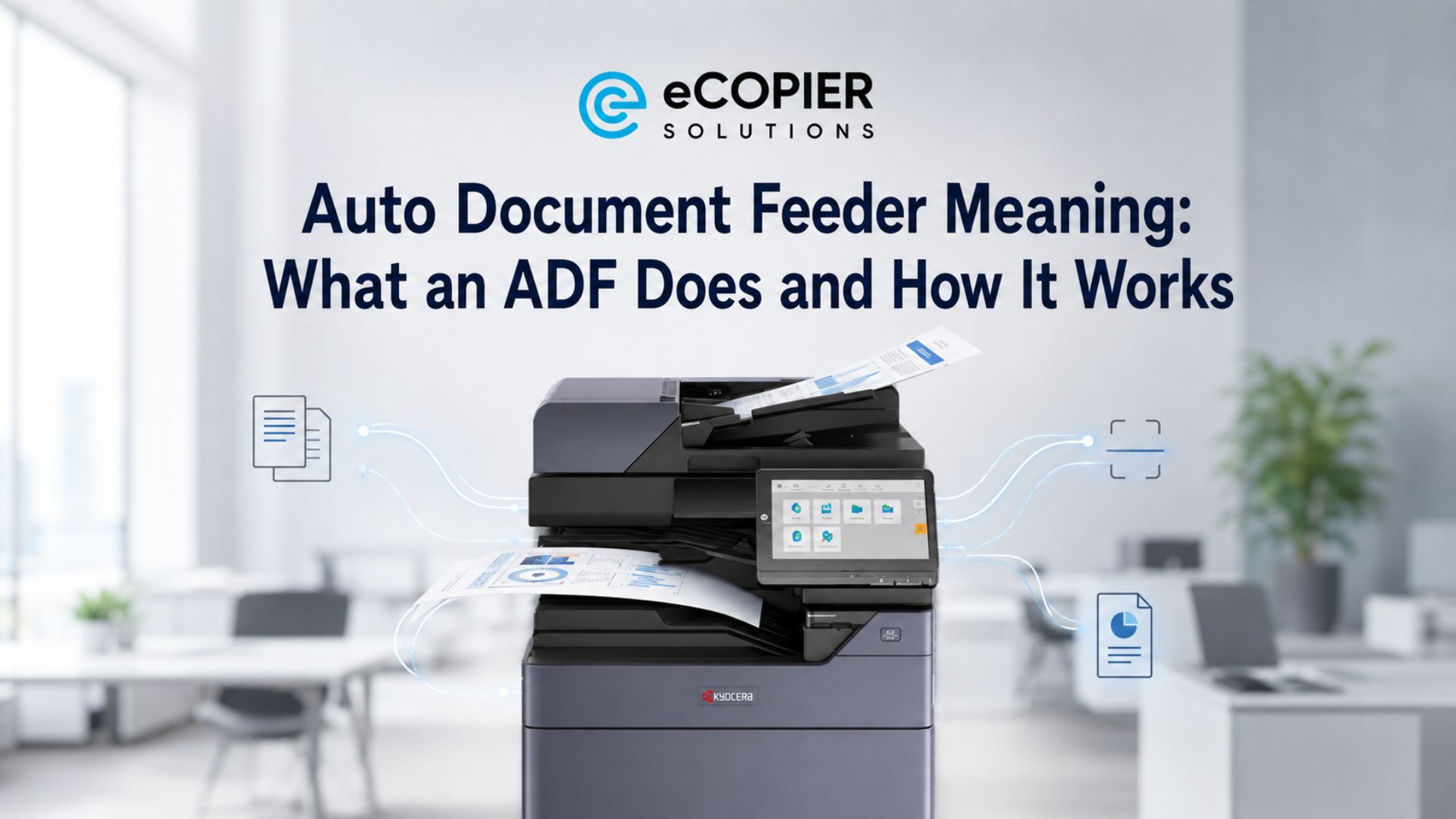
An auto document feeder on a printer is the tray and feeding system that pulls original documents into the scanning unit one page at a time. It usually sits on top of a multifunction printer or office copier.
In simple terms, auto document feeder means the machine can process a stack of originals without requiring you to place every page on the scanner glass. The ADF supports scanning, copying, and sometimes faxing. Blank paper for print jobs still comes from the machine’s regular paper trays.
This distinction matters because an auto document feeder printer may print, scan, copy, and fax, while the feeder itself handles the original pages that need to be captured. Our guide to how multifunction printers work explains how these functions fit together inside one office device.
What Is an Automatic Document Feeder in a Scanner?
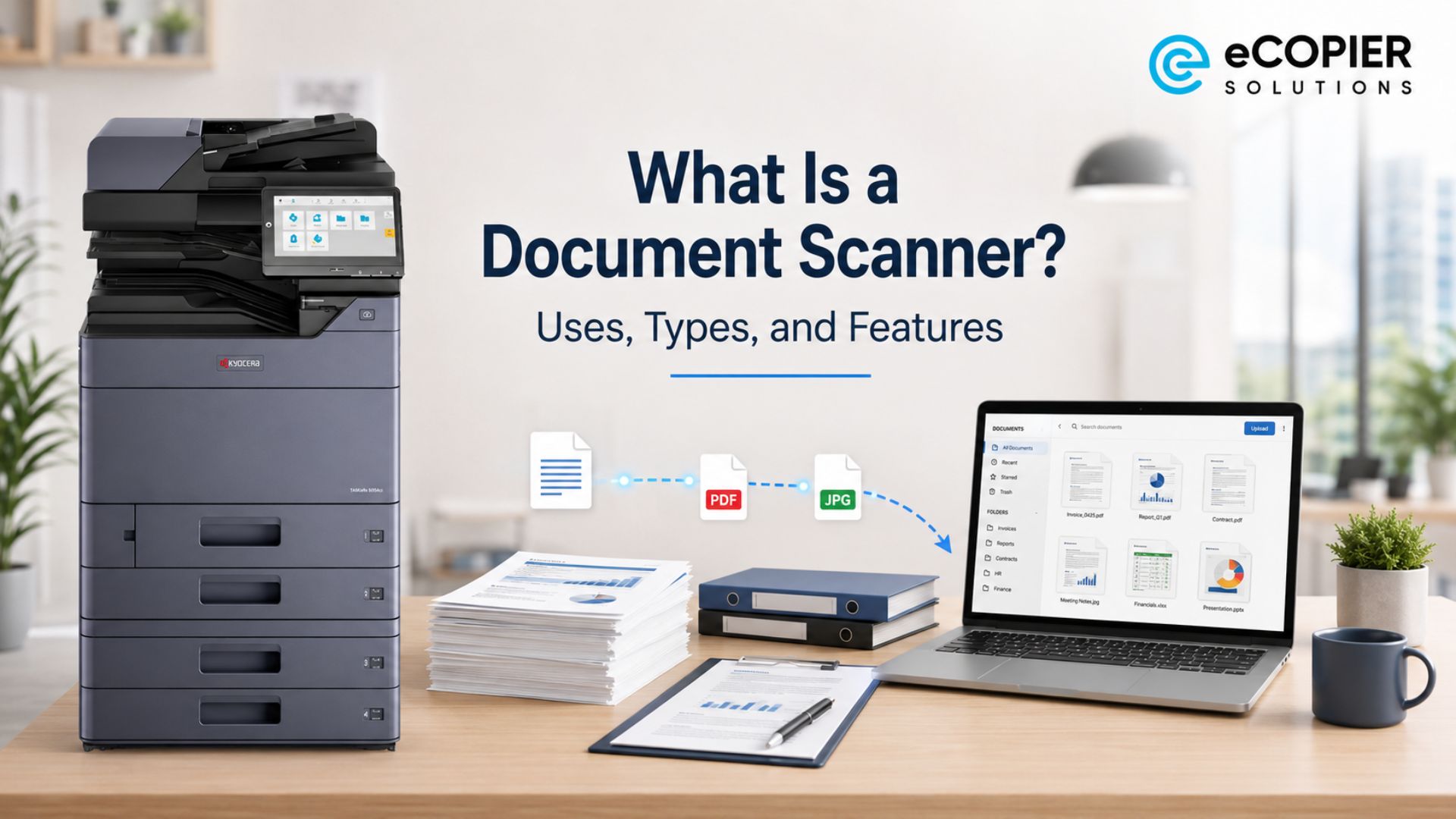
An automatic document feeder in a scanner is a mechanism that holds loose pages and passes them through the scanning area automatically. It may be built into a standalone document scanner or included on top of a multifunction copier.
An auto document feeder scanner is useful when you need to digitize contracts, invoices, forms, reports, applications, or other multi-page records. You load the stack once, choose the scan settings, and let the machine process each sheet.
The finished document may be saved as a PDF or image file. When optical character recognition is available, the scanner may also create a searchable file. You can learn more about the equipment behind this process in our guide to how document scanners work.
How Does an Automatic Document Feeder Work?
An automatic document feeder works by separating pages from a stack and moving them across the scanning element one at a time. The process looks simple from the outside, though several rollers, guides, and sensors need to work together.
Good page preparation helps the mechanism stay consistent. It also reduces crooked scans and paper jams.
Here are the steps the feeder follows:
- The user loads and aligns the pages: The stack goes into the input tray, and adjustable document guides hold the pages straight. If those guides sit too far from the paper, the sheets may enter at an angle.
- The pickup roller separates one sheet: A pickup roller pulls the first page into the machine. Separation rollers or pads help keep the rest of the stack in place so several pages do not enter together.
- The page passes the scanning element: The scanner captures one side or both sides of the document. The result depends on the feeder design and the selected scan settings.
- The page enters the output tray: After capture, the sheet moves into the output area. The machine then saves or sends the digital file to the chosen destination.
In product specifications, auto document feeder usually refers to this complete feeding system. Many modern machines also include double-feed detection and paper-jam sensors, which help catch common feeding problems before an entire batch is affected.
ADF vs. Flatbed Scanner
An ADF and a flatbed scanner solve different document-handling problems. We usually recommend looking at the originals you scan most often before deciding which feature matters more.
The type, size, and condition of the document should guide the choice.
These are the main differences:
An auto document feeder makes sense for clean office paperwork that arrives in batches. But a flatbed works better for books, photos, identification cards, receipts, and delicate originals. In practice, many offices get the most flexibility from a multifunction device that includes both.
What Are the Main Types of Automatic Document Feeders?
The main types of automatic document feeders are simplex ADFs, reversing automatic document feeders, and single-pass duplex feeders. The key difference is how each one handles two-sided originals.
That difference affects scanning speed and the amount of movement each sheet goes through. It can also affect the price of the machine.
Here are the three common types.
Simplex ADF
A simplex ADF scans one side of each page during a pass. It works well for one-sided forms, letters, and reports. When both sides contain information, someone must turn or reload the pages before the second side can be captured.
Reversing Automatic Document Feeder
A reversing automatic document feeder, typically called an RADF, scans one side and then reverses or re-feeds the page to capture the other side. It supports duplex scanning, though each sheet travels through more than once, so the process usually takes longer.
Single-Pass Duplex Automatic Document Feeder
A single-pass duplex automatic document feeder may also be called a DADF or dual-scan ADF. It captures both sides of the sheet during one pass. This reduces page movement and helps document-heavy offices scan two-sided records faster.
Teams that frequently process double-sided contracts, forms, and reports usually gain the most from single-pass duplex scanning.
What Documents Can and Cannot Go Through an ADF?
Clean, loose, standard-size pages can usually go through an ADF, while fragile or irregular originals should be placed on the scanner glass. A feeder depends on rollers and a fairly precise paper path, so document condition matters.
So, a few seconds of preparation can prevent damaged originals and interrupted scan batches.
Here are the basic guidelines we recommend:
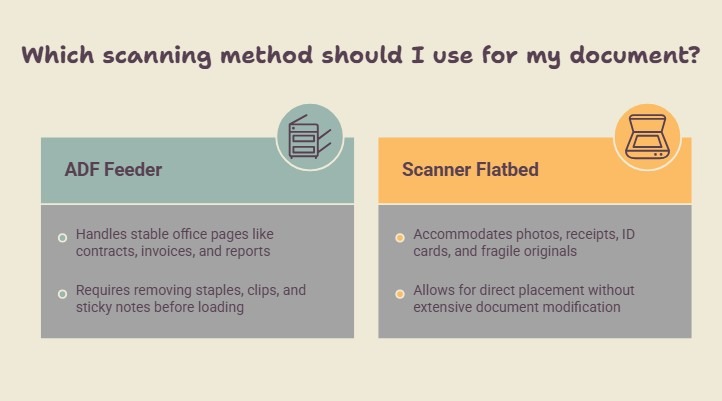
- Good ADF candidates: Use the feeder for contracts, invoices, reports, applications, forms, letters, and other stable office pages.
- Use the flatbed instead: Place photos, receipts, identification cards, bound pages, torn sheets, curled paper, thick stock, and fragile originals on the scanner glass.
- Prepare documents first: Remove staples, paper clips, sticky notes, folds, and loose adhesive. Then fan the pages, straighten the stack, and align the edges before loading it.
When a document feels risky to bend or pull through rollers, we recommend using the flatbed.
What Should You Check Before Choosing an ADF?
Before choosing an ADF, check its capacity, speed, duplex method, paper compatibility, detection features, scan destinations, OCR support, and recommended workload. A feeder that looks fine in a product photo may still be too small or too slow for your office.
The right choice depends on how documents move through your team each day.
These are the details worth comparing:
- Feeder capacity: Check how many sheets can be loaded at once. A small feeder may require frequent reloading during larger jobs.
- Scanning speed: Pages per minute usually describes physical sheets. Images per minute may count each scanned side as one image.
- Duplex method: Check whether the machine reverses pages or captures both sides in one pass.
- Supported paper sizes and weights: Make sure the feeder accepts the forms, letters, legal-size pages, and paper stock your office uses.
- Double-feed detection: This feature helps identify cases where two sheets enter together, which matters when scanning complete records.
- Scan destinations: Review support for email, network folders, USB drives, cloud platforms, and document-management systems.
- OCR support: Searchable PDFs make scanned records easier to find and reuse.
- Daily workload: Match the device to occasional scanning, steady office use, or high-volume document capture.
A scanner with an auto document feeder should fit the real workload rather than the largest number printed on the specification sheet.
When Is an Automatic Document Feeder Worth Having?
An automatic document feeder is worth having when you regularly scan or copy documents that contain several loose pages. Accounting teams may use one for invoices, while law offices may process case documents and signed agreements. Schools, medical offices, and administrative departments also handle forms and records that arrive in batches.
Paper remains part of many business workflows. IBML reports that a 2020 Kyocera survey of more than 1,000 U.S. employees found that the typical business received 42% of its documents on paper.
A printer with an auto document feeder can save meaningful time in those environments. But a flatbed-only machine may still be enough for occasional single pages, photographs, or delicate originals. So, we recommend basing the decision on document volume, page condition, and the need for two-sided scanning.
What Happens After the ADF Scans the Pages?
After the ADF scans the pages, the machine saves or sends the digital file according to the selected workflow. The feeder handles document capture, while the destination and file setup determine whether people can find and use the scan later.
A file may go to email, a USB drive, a network folder, or a cloud platform. It may be saved as a PDF or image, and OCR can turn it into a searchable document. Clear file names, organized folders, and sensible access permissions then keep records usable.
This step matters more than it seems. A 2023 Adobe survey found that 48% of employed Americans had difficulty finding documents quickly.
Before discarding an original, open the completed file and confirm that every page is present and readable. Our guide explains how to scan multiple pages with a copy machine and choose a practical destination.
How Can eCopier Solutions Help You Choose an ADF-Equipped MFP?
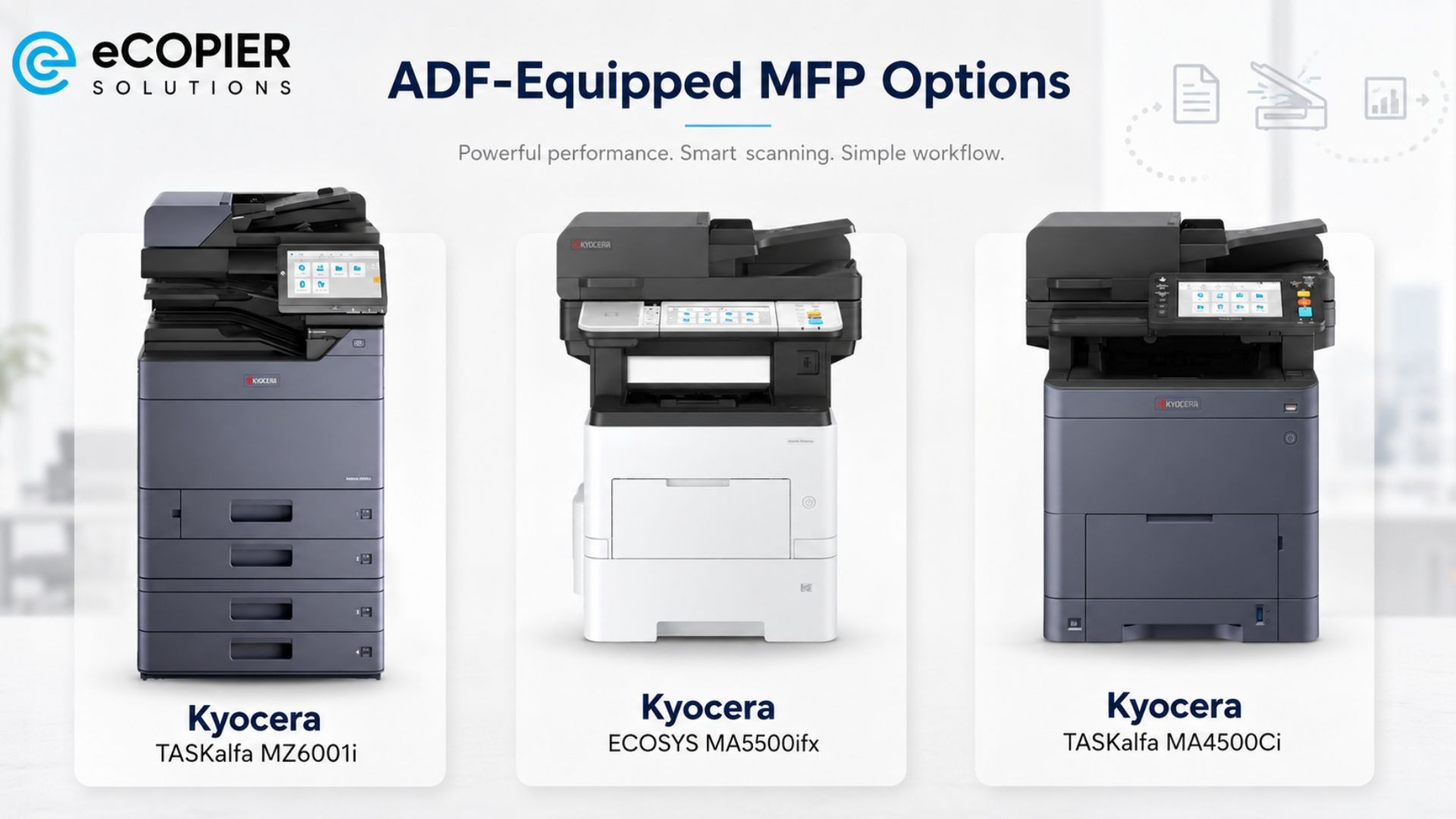
eCopier Solutions can help your business choose a Kyocera multifunction copier with an ADF that fits your scanning, copying, and printing workflow. We look at document volume, feeder capacity, simplex or duplex needs, scan speed, color requirements, file destinations, team size, and shared-device use.
The ADF handles original documents for scanning and copying. The complete multifunction device also handles regular office printing. Depending on the workload, suitable equipment may include models such as the Kyocera TASKalfa MZ6001i, ECOSYS MA5500ifx, or TASKalfa MA4500Ci.
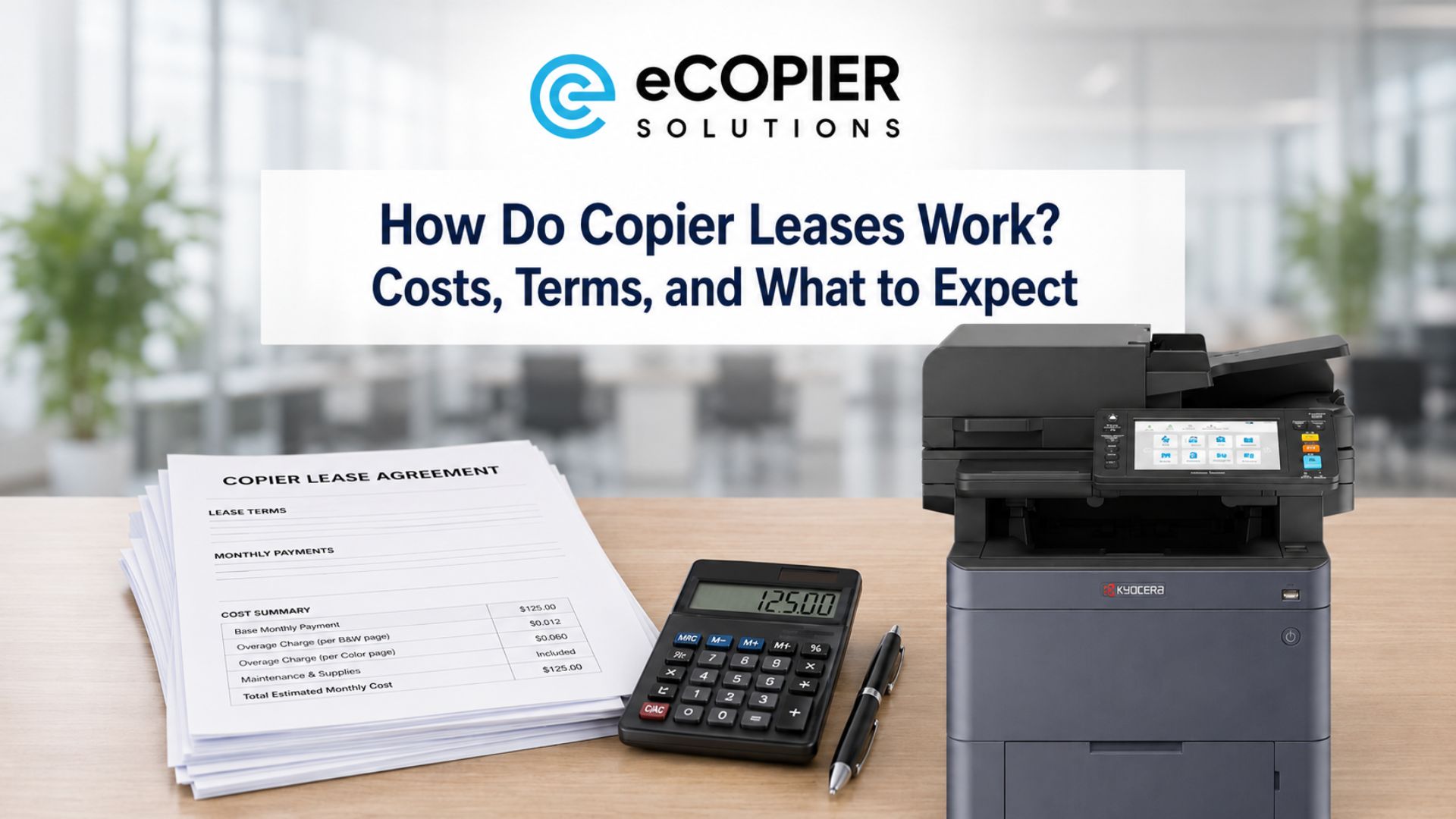
Our leasing support can also include equipment setup, toner, maintenance, replacement parts, shipping, remote diagnostics, and nationwide service. Check out our multifunction copier lease options to find equipment that matches your office, or request a quote to discuss your scanning and document-processing needs.




.webp)

.png)