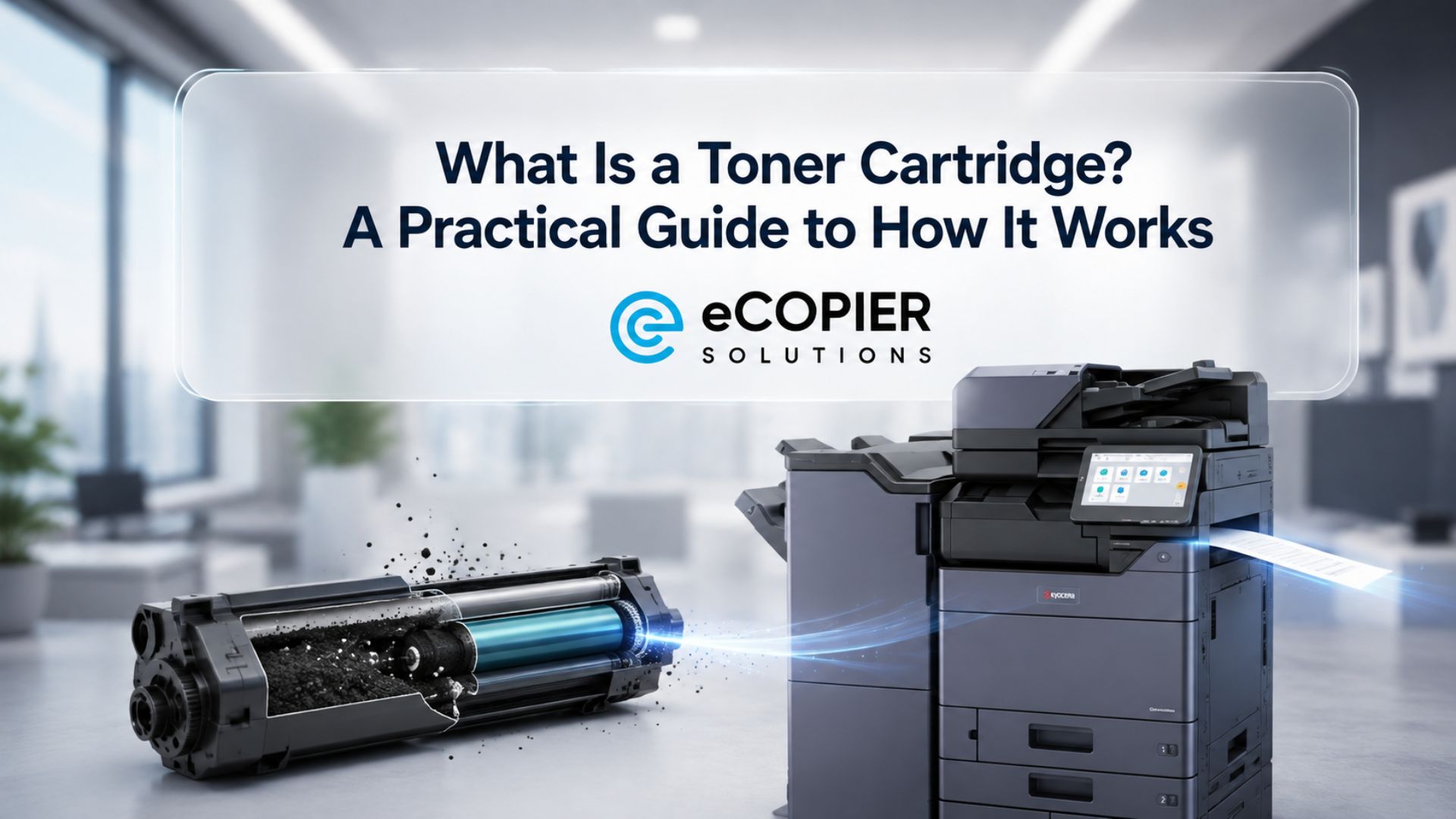
A toner message has interrupted your print job, and now someone needs to get the office printer working again. Well, if you’re wondering how to replace a toner cartridge, today we'll walk you through removal, installation, and the first print afterward. Access panels, release mechanisms, and power instructions vary, so check your exact model before you start.
P.S. For a little background first, our other guide explains how toner cartridges work.
How to Replace a Toner Cartridge in a Printer?
Remove the used cartridge, prepare and install its replacement, close the printer, and check a test print.
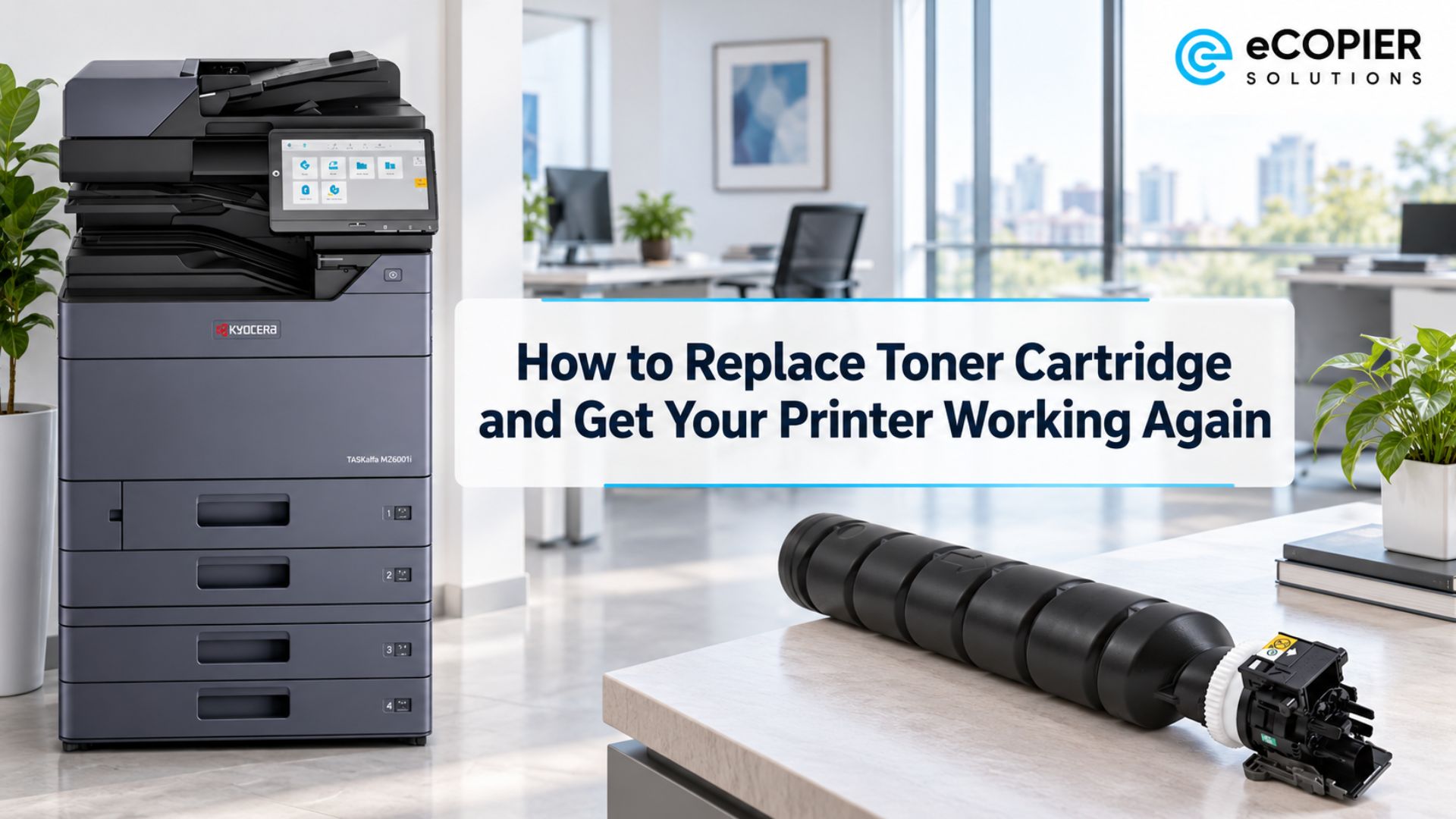
For this how to replace toner cartridge guide, we'll use the Kyocera TASKalfa MZ6001i as our example. The procedure follows pages 10-4–10-6 of Kyocera's operation guide. Other printers follow similar stages, but their controls and preparation instructions can differ.
NOTE: An eCopier Solutions technician tested and verified the steps below.
Here are the six steps.
1. Check the Manual and Prepare Your Workspace
Before any laser printer toner cartridge replacement, have the correct replacement, protective paper, and a bag for the used cartridge within reach. Clear enough space to set the container down, and move drinks away. If you haven't selected a cartridge yet, check the final FAQ first.
Keep the model's instructions open beside you. The MZ6001i procedure uses the touchscreen if its toner cover needs reopening, so don't automatically switch off or unplug the machine. For other models, follow their power instructions and cooling precautions. Avoid reaching beyond the toner compartment toward hot internal parts.
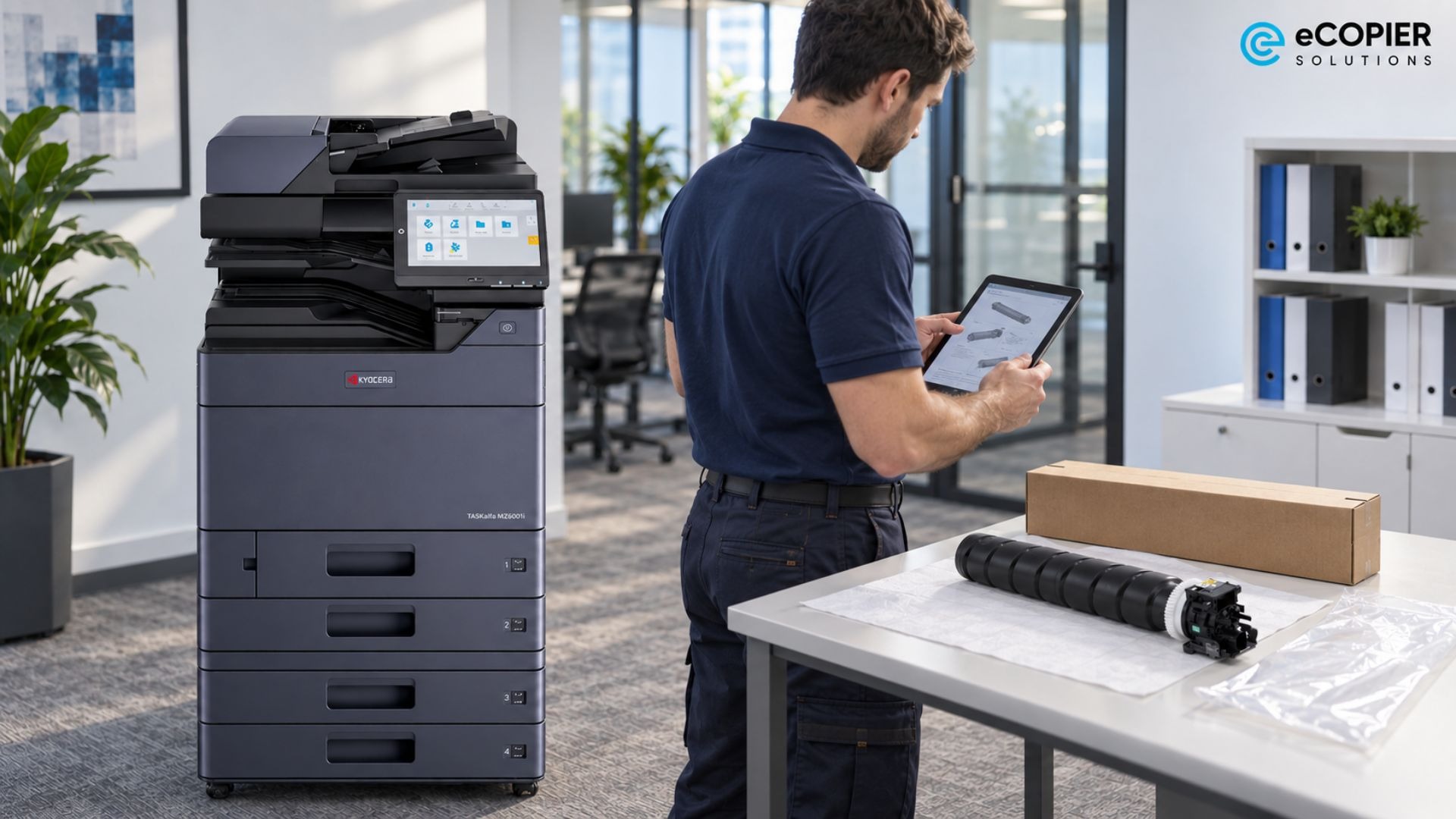
2. Open the Toner Access Panel and Identify the Assembly
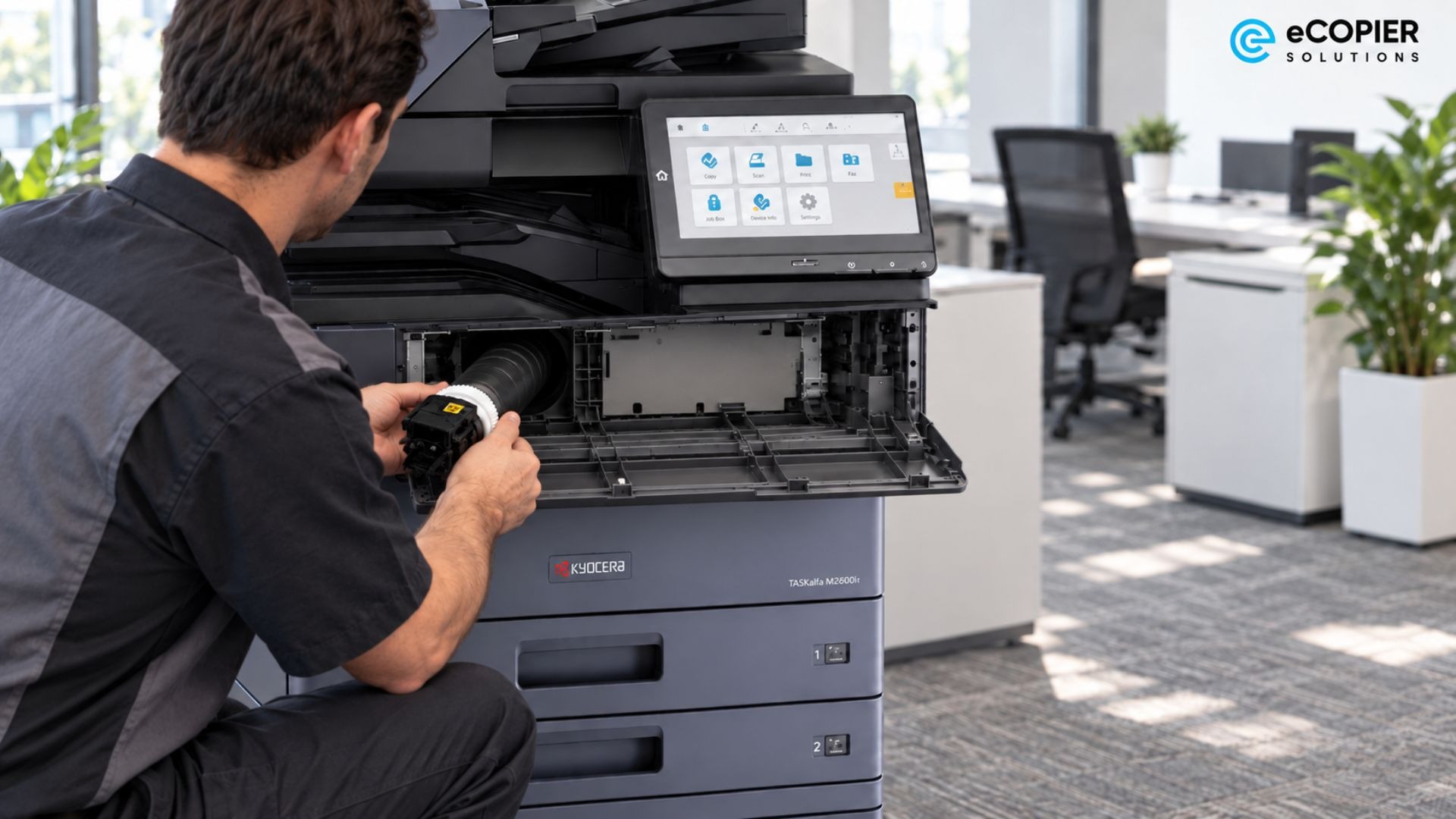
On the MZ6001i, open the front cover to reach the toner compartment. If the inner toner container cover has closed before replacement, select Open Toner Container Cover on the touchscreen.
This machine uses a separate toner container, so its routine replacement leaves the drum in place. The waste-toner box is also a separate part with its own replacement message.
Your printer may instead combine toner and drum in one assembly or clip them together. Understanding the difference between toner cartridges and drum units helps you identify what should come out before you pull anything free.
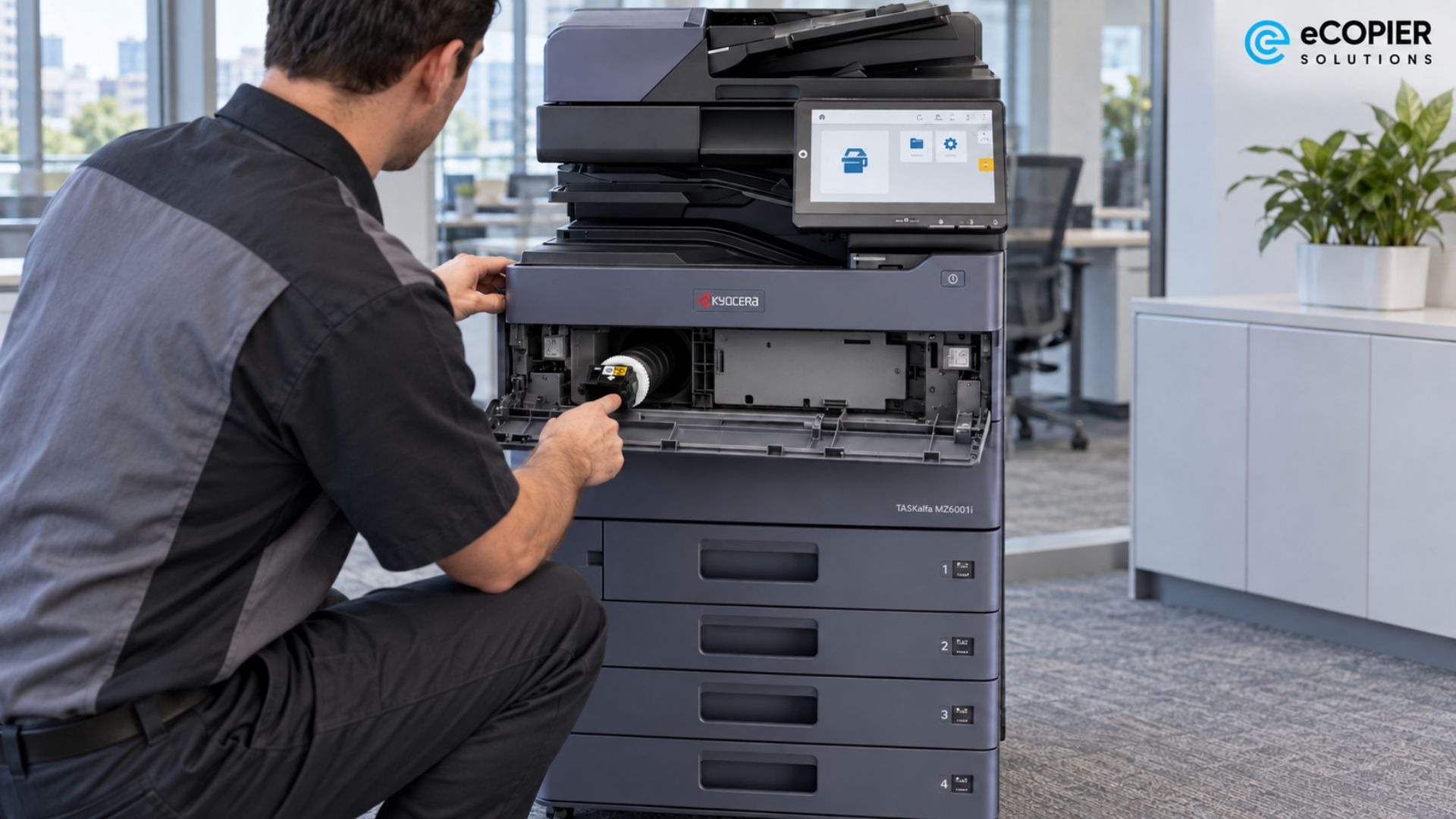
3. Release and Remove the Used Cartridge
With the MZ6001i's toner cover open, hold the container securely and withdraw it as shown in the guide. Support its length, then put it into the plastic waste bag. Keep it intact so residual powder stays contained.
If you need to replace the toner cartridge on another model, check whether a latch must release first or a drum assembly must come out with it. Avoid exposed drums, chips, and electrical contacts.
If toner spills, avoid compressed air and household vacuums. Follow the manufacturer's cleanup guidance, and get service assistance for a substantial spill.
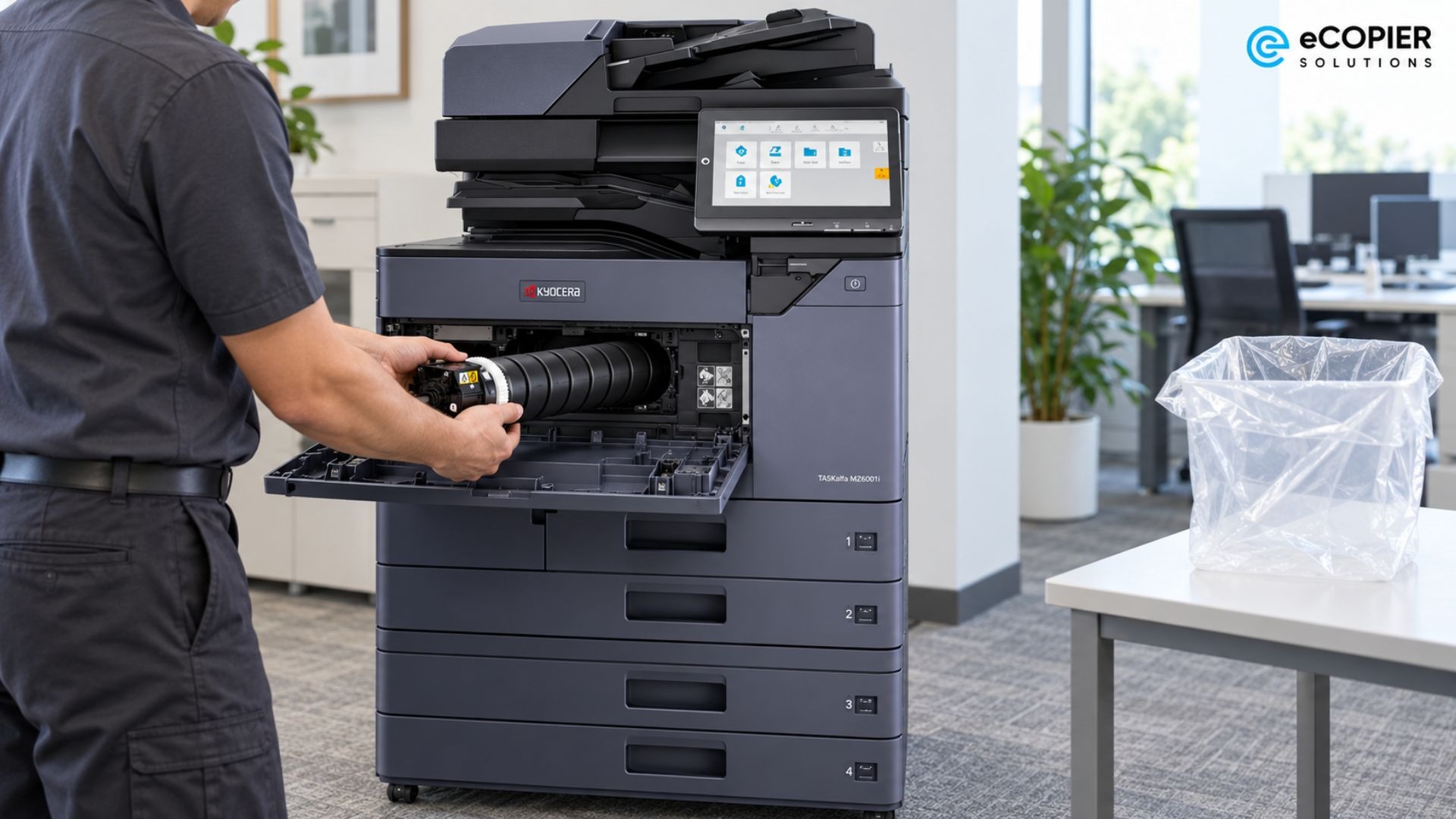
4. Prepare the New Cartridge as Directed
Once the old container is contained, unpack the new one and check for cracks or shipping damage. Keep your hands away from the end components highlighted in Kyocera's diagram.
For the MZ6001i, page 10-5 shows five or six taps in each of two orientations, followed by five or six shakes. Follow those illustrated positions and that sequence before installation.
Other cartridges may require removal of a seal strip, protective cover, or transport lock. Remove only the pieces their instructions identify. The Kyocera procedure here doesn't include a separate pull-seal step, so don't peel or pry at parts that look removable.
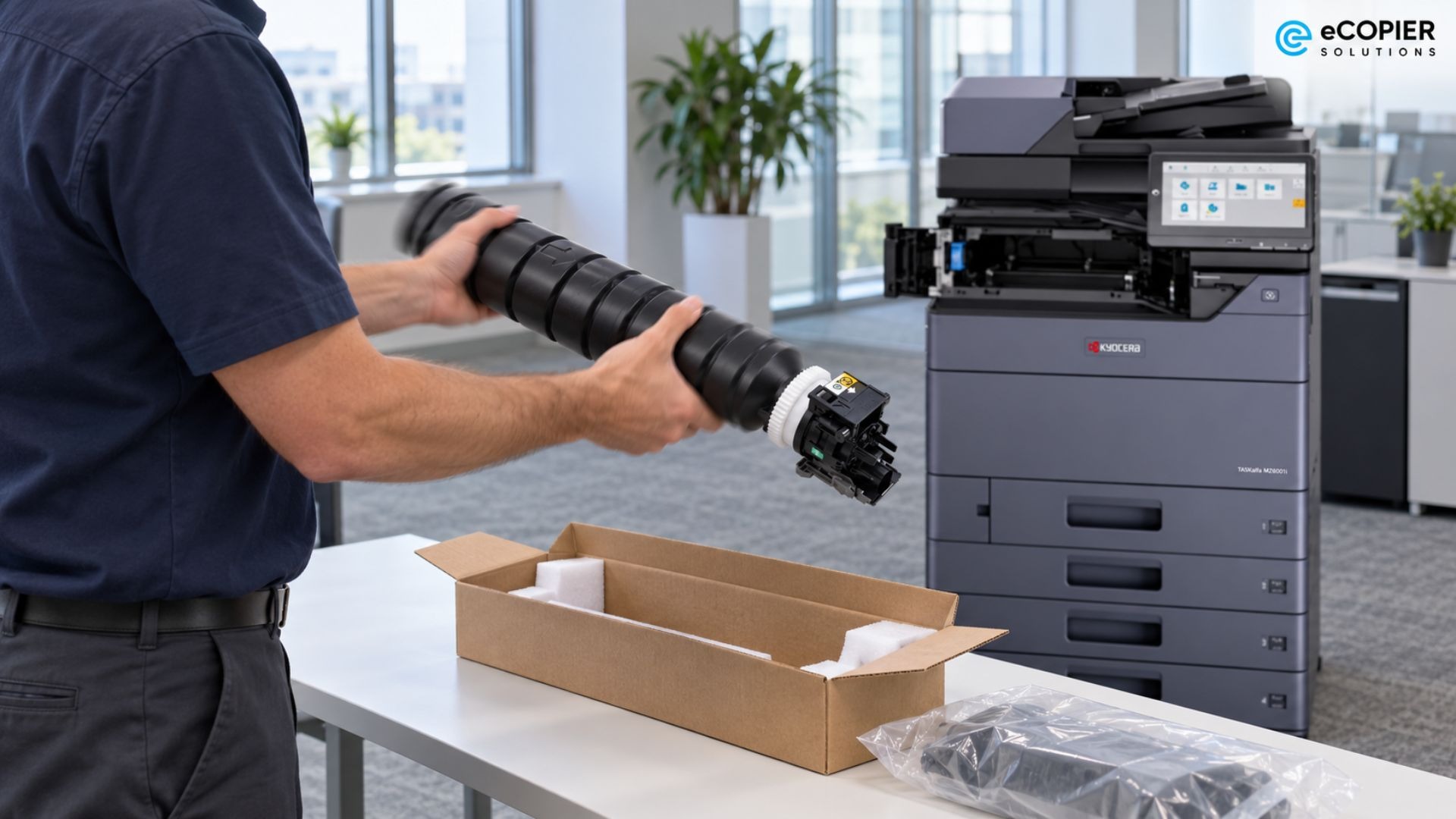
5. Seat the Cartridge and Secure the Assembly
Align the new MZ6001i container with its opening and keep its orientation arrow pointing upward, as the installation diagram shows. Slide it fully into place until it clicks. Then close the inner toner container cover, followed by the front cover.
If either cover resists, stop and check the container's position. A cover that needs force is a reason to recheck the installation.
On printers with a reusable drum assembly, the cartridge may need to lock into that assembly first. Follow any model-specific maintenance instructions as well. This Kyocera procedure doesn't call for corona-wire cleaning.
6. Close the Printer and Verify the First Print
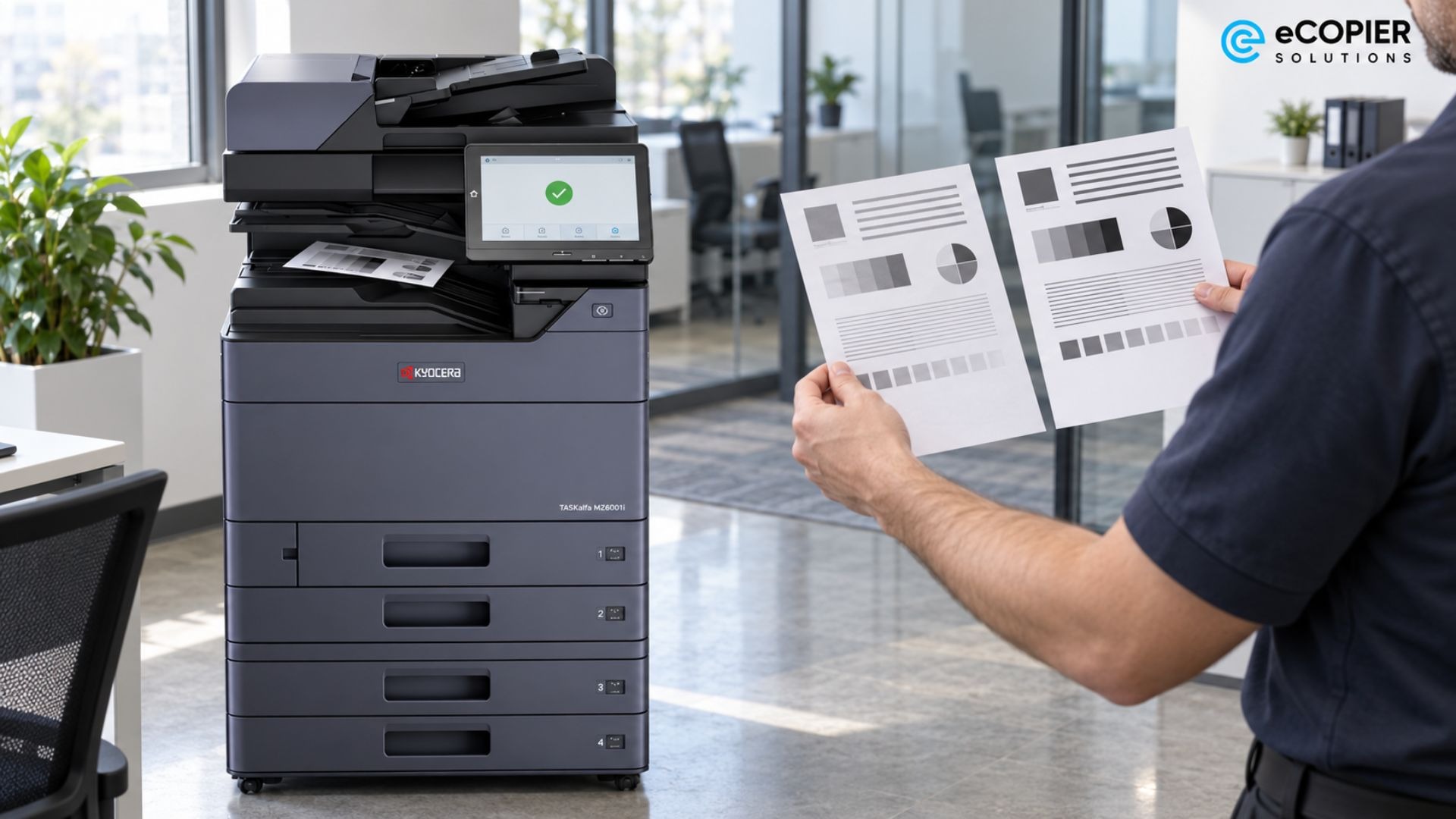
With the covers closed, allow the printer to finish initialization and return to a ready state. Check that it recognizes the replacement, then print a built-in test page or a familiar one-page document.
Look for readable text, even coverage, and any new marks. If you saved an earlier test page, compare the same document with identical print settings. A before-and-after comparison is more useful than two unrelated pages.
When to Replace a Toner Cartridge?
Replace a cartridge when the printer requires a new supply or its troubleshooting checks identify the cartridge as the cause of unacceptable output. A low-toner warning usually gives you time to prepare, so read the full message before removing anything.
Here are the three situations we believe you should check:
- Low toner with acceptable output. Have a replacement ready and follow the printer's guidance about continued use. The MZ6001i specifically tells you to replace when empty.
- Empty toner or a replacement-required message. Follow the displayed instruction, especially if printing has stopped. Other models may display “replace toner cartridge.”
- Faded or uneven pages. Check the model's print-quality guidance because several faults can produce similar symptoms.
Some manufacturers permit redistribution of remaining toner as a temporary measure. Use that option only where your model's instructions allow it.
How Often Does Toner Need to Be Replaced?
Toner needs replacement as its usable supply runs out, so there is no fixed monthly schedule. Your toner cartridge replacement interval depends on page yield, printing volume, coverage, and settings.
As a hypothetical example, 3,000 rated pages ÷ 1,000 pages per month = roughly three months under comparable conditions. Heavy graphics can change that estimate, and color cartridges may empty at different rates.
For a forecast based on your office's actual use, record the installation date and printer page counter. Compare that reading with the counter at the next replacement, then repeat over several cycles.
Those records give you a more useful reorder estimate than the box alone. Total page count still won't tell you exactly how much of each color was consumed.
Troubleshoot Installation and Print-Quality Problems
A problem after printer toner cartridge replacement gives you a starting point for checks. Pay attention to whether the problem is physical, visible on the page, or accompanied by loose powder, because each calls for a different response.
From our experience, here are the first checks you should make:
Keep a sample of the defective print for the technician. Avoid buying a new drum solely because a page has streaks because the fault needs to be identified first.
Recycle the Empty Cartridge Through an Accepted Program
Once the printer works again, arrange a destination for the used cartridge. Keep it intact in protective packaging, and confirm that the manufacturer, supplier, or specialist recycler accepts that exact type. Check local rules before putting it in a curbside bin.
That extra check matters because plastic waste doesn't automatically reach a recycler. Across all US municipal plastic waste, EPA recorded 35.7 million tons generated in 2018 and an 8.7% recycling rate.
For practical return options, see our other guide on how to recycle an empty toner cartridge. If your printer is managed, ask your provider about accepted containers, packaging, and any collection charges before you send it back.
Simplify Office Toner Management With eCopier Solutions
Replacing a cartridge solves today's interruption, but someone still has to order supplies and arrange service. Our copier and printer leasing with unlimited toner brings equipment, toner, and maintenance into one business arrangement, with coverage defined by your agreement.
For example, we created hands-off managed printing for Maserati by combining printer and copier management, remote monitoring, automatic supply replenishment, and on-site support for the dealership. That reduced routine printer-management work for its team. We can help your office arrange a similar approach around its equipment and daily workload.
Request a quote with your printer model and approximate monthly print volume, and we'll discuss a suitable setup.
FAQs
Can I Refill a Toner Cartridge Myself?
Some cartridges can be refilled, but suitability depends on their construction, toner formula, component condition, and chip requirements. Adding powder alone doesn't provide the inspection and restoration involved in remanufacturing. If those requirements are unclear, choose a supported replacement or qualified remanufacturer.
Why Is My Printer Saying Replace Toner When I Just Replaced It?
The printer may not recognize the replacement, or the message may concern another supply. Record the wording, confirm compatibility, and recheck installation. Reset only as your model's manual directs. Ask your supplier or technician about persistent chip errors.
Can You Use a Toner Cartridge Without a Chip?
It depends on the printer's design. A machine that requires a recognized chip may reject a chipless cartridge or restrict functions. Check the exact compatibility documentation before buying. Transferring a chip or changing a setting isn't a universal solution.
Which Toner Cartridge Do I Need?
Match your printer's exact model to its supported cartridge number, color, region, and yield options in the official supply list. For example, Kyocera's US MZ6001i page lists TK-6357K black toner. Confirm the part with your managed-print provider before ordering.