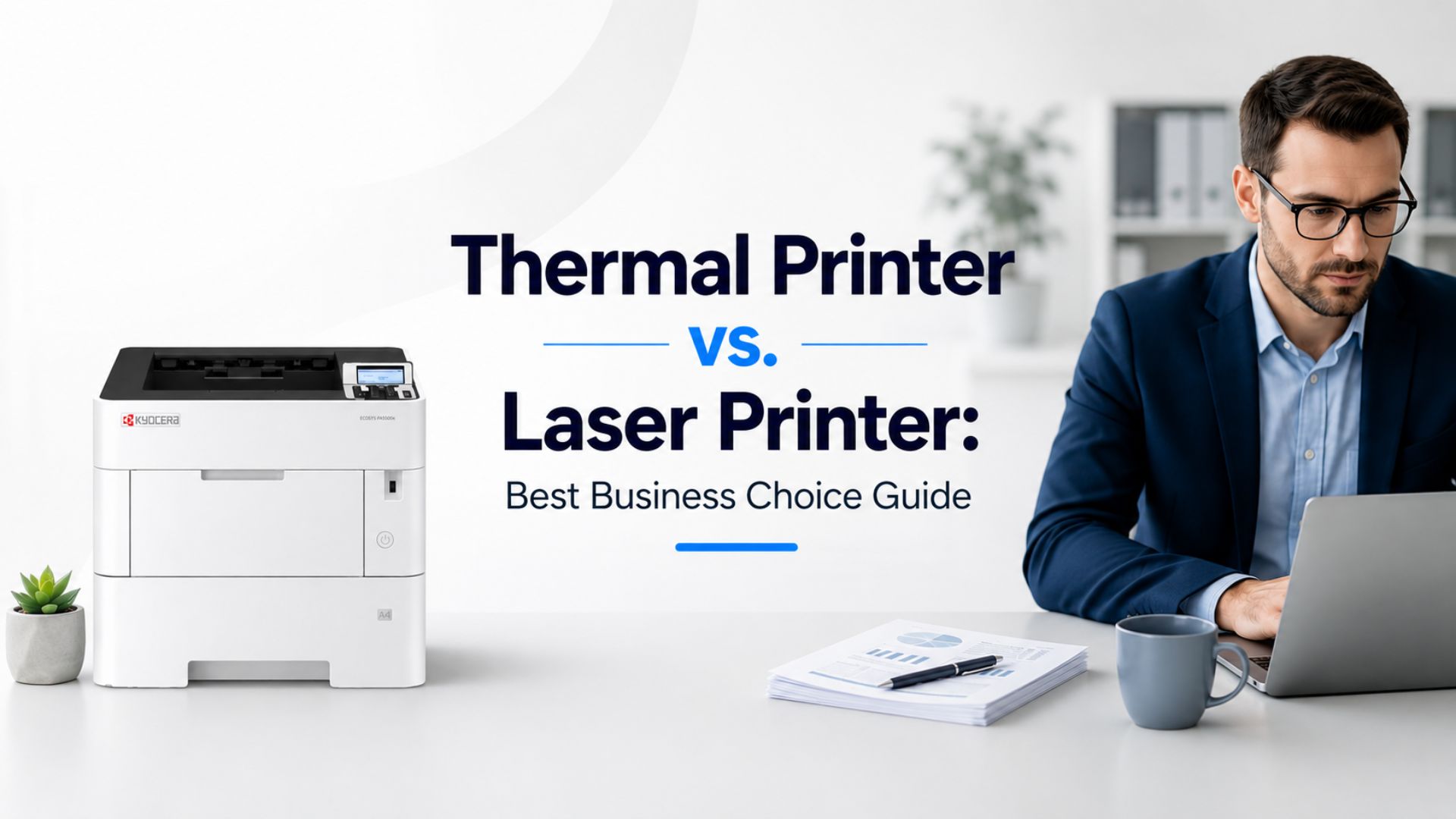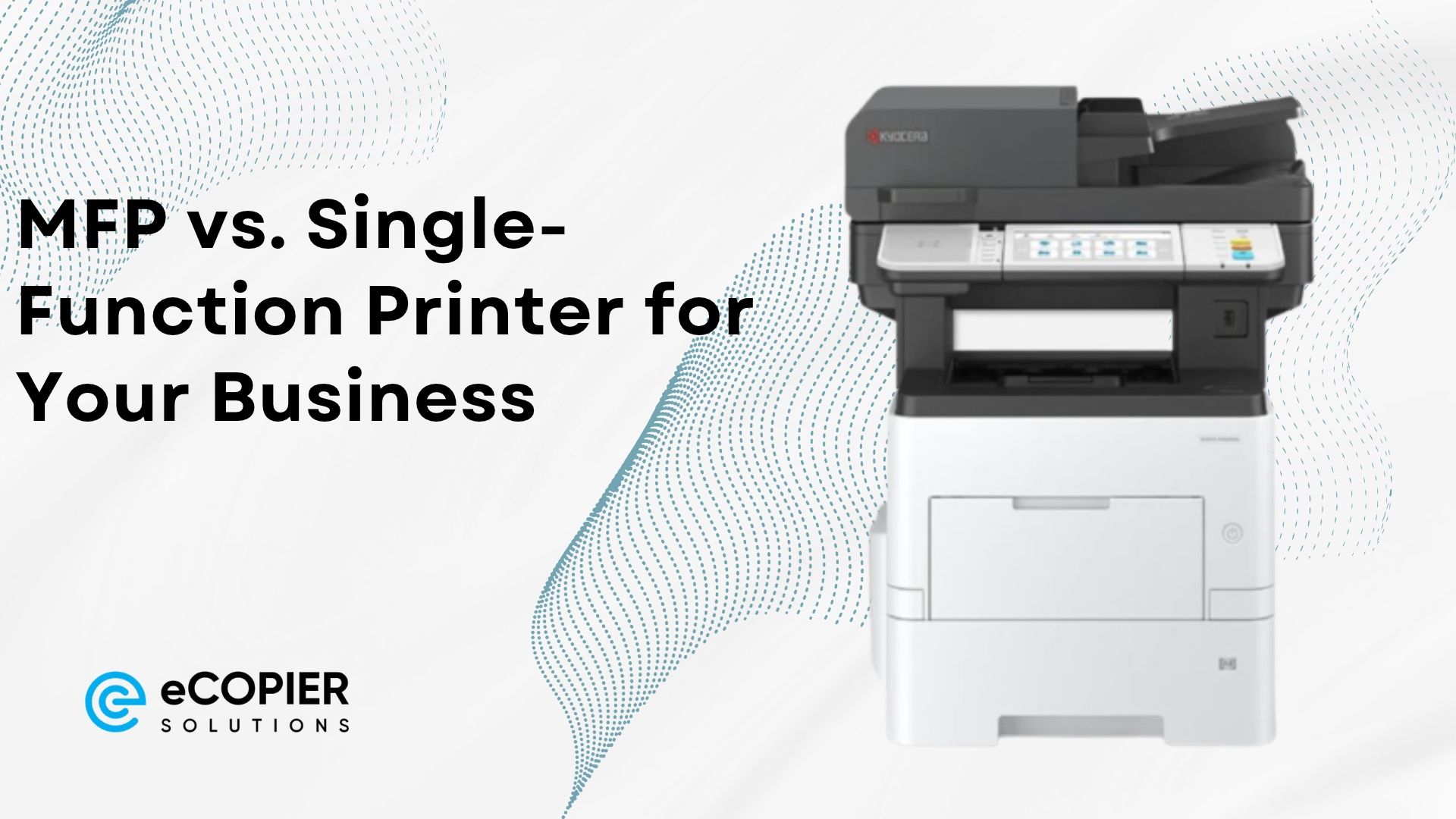
Your office needs a new printer, but the scanner beside it still works. Meanwhile, someone wants a machine that can copy signed forms without a trip to reception. So, which setup makes sense?
The choice between an MFP and a single-function printer comes down to how your office handles paperwork.
In this article, we’ll compare their features and running costs, explain where each type fits, and show how your existing equipment could affect the decision.
TL;DR
- An MFP prints, scans, and copies, with fax available on some models. A single-function printer handles printing only.
- Your existing scanner may make a print-only device enough. A shared MFP and departmental printers can also work together.
- Speed, quality, and security depend on the model. We recommend checking monthly workload, paper sizes, and available space.
- Your cost comparison should include equipment, supplies, maintenance, and any separate scanning costs over the same period.
- A suitable service agreement should explain toner coverage, repairs, response times, and backup options.
- eCopier Solutions can help you compare equipment and support based on your office’s needs.
What Is a Single-Function Printer?
A single-function printer produces printed pages and has no built-in scanner or copier. The term single-function printer means print-only hardware, even if the machine supports wireless connections or several users.
That can be enough for an accounts department that prints invoices and already has scanning covered. These devices come in inkjet and laser versions, with color and monochrome options.
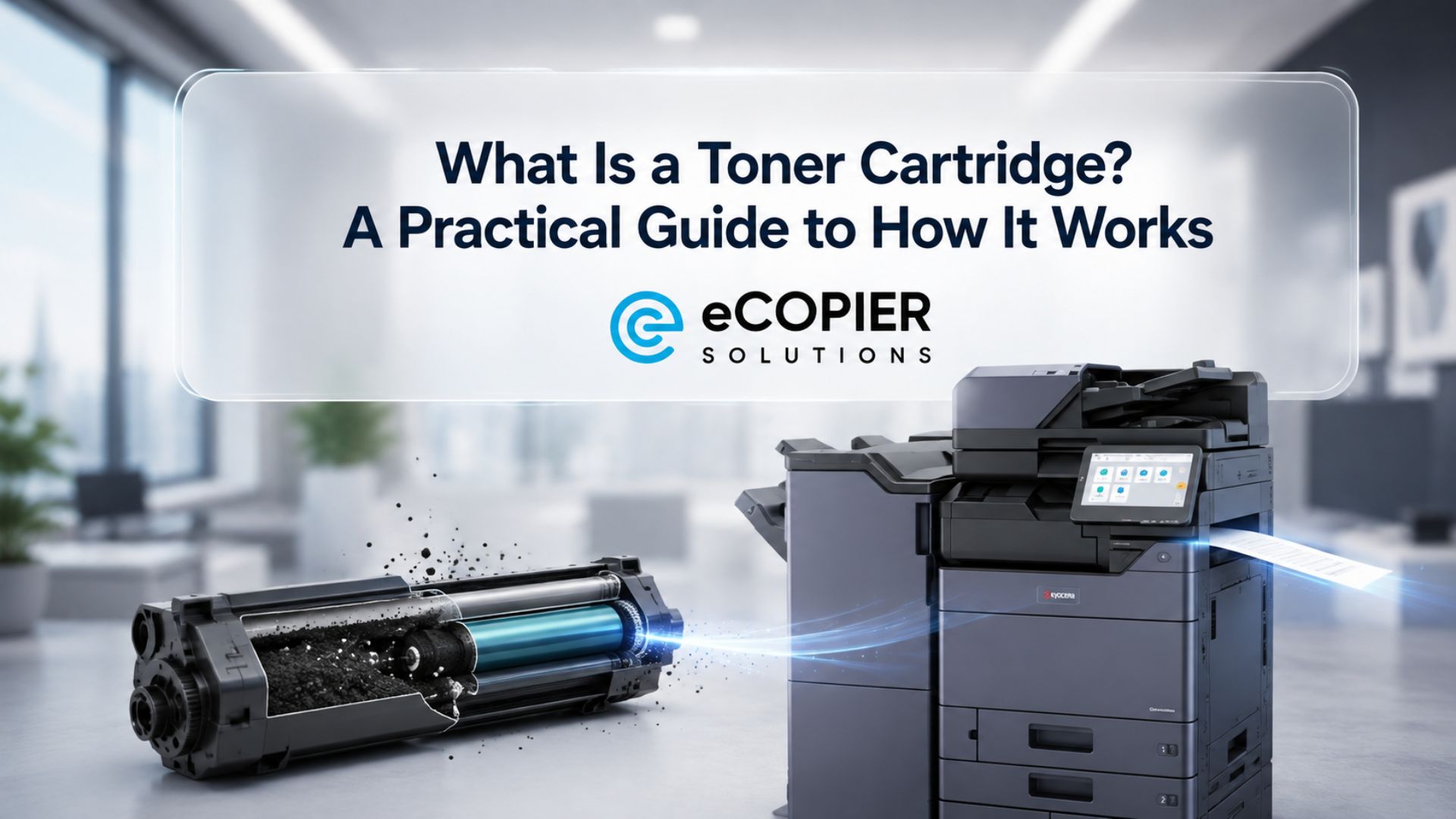
A single-function laser printer uses toner. But how well it handles your office’s workload depends on the model, so we’d check its specifications before deciding whether it fits.
What Is an MFP Printer?
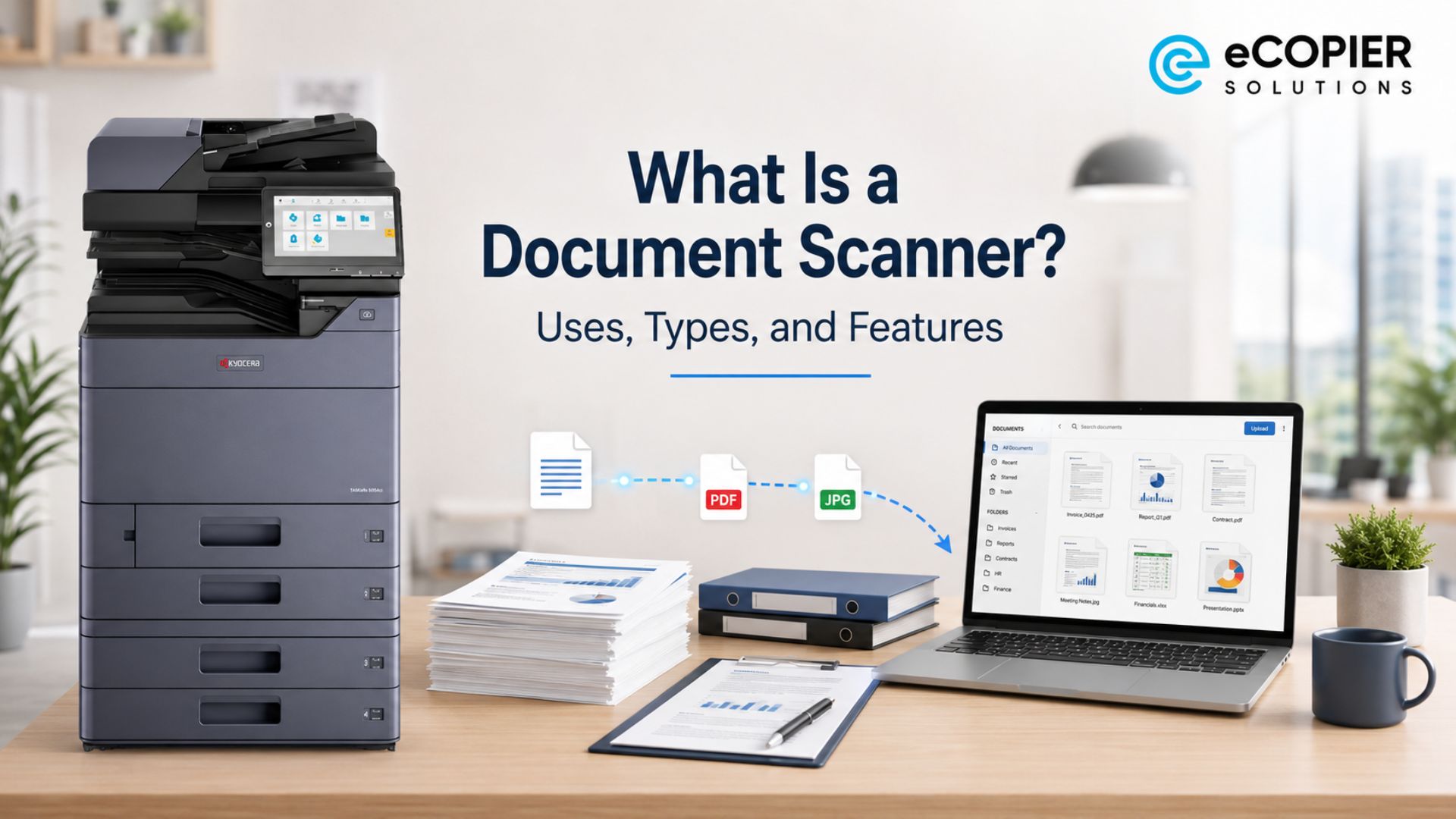
An MFP, or multifunction printer, combines printing with scanning and copying. Some models also include fax.
With a multi-function office printer, an employee can scan a signed contract straight into a client folder. The same machine can produce a paper copy if someone needs one.
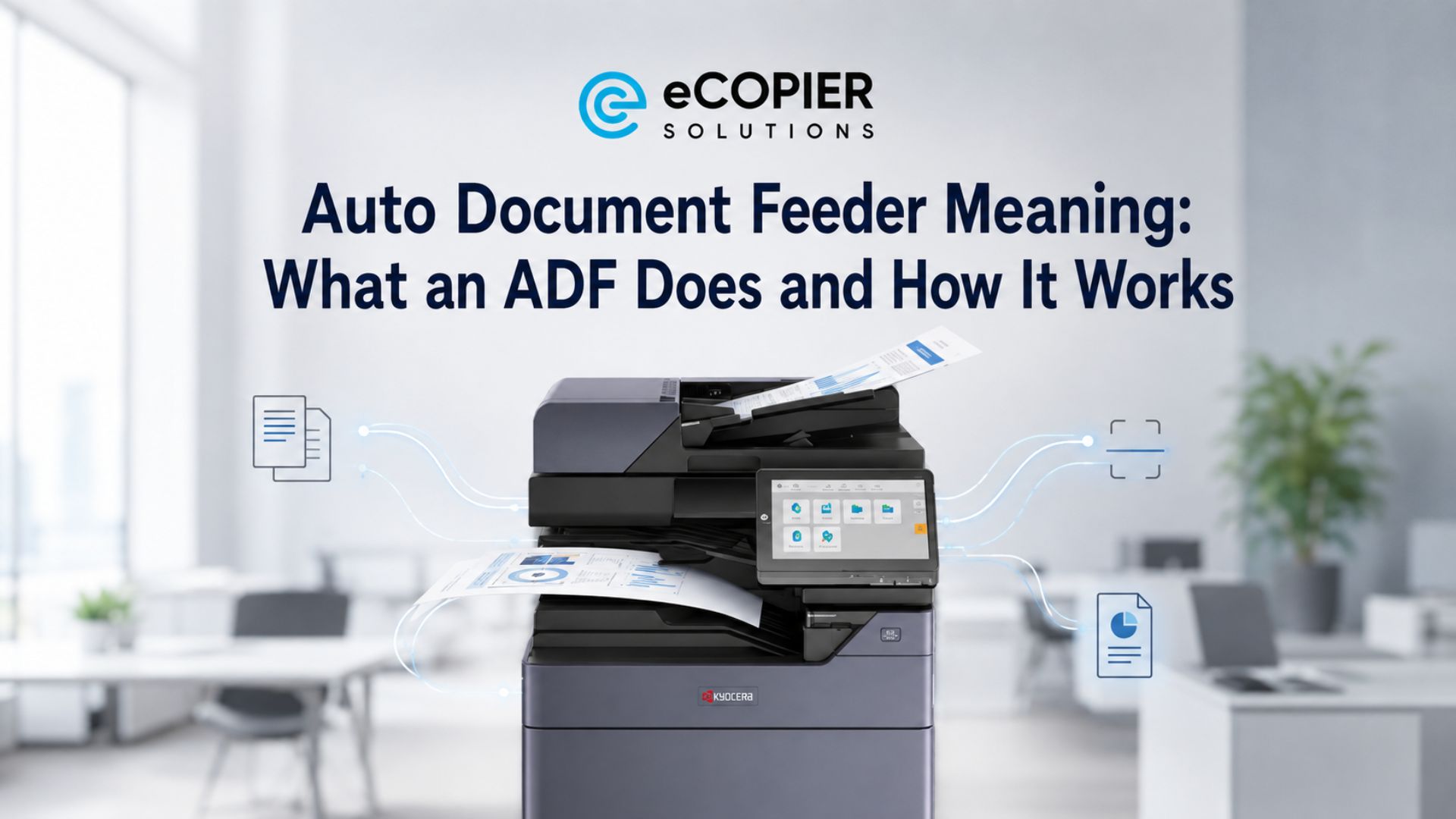
For longer documents, the feeder needs to handle the full batch comfortably. And if the pages have information on both sides, two-sided scanning can save staff from turning them over by hand.
P.S. Our guide to automatic document feeder features explains what to check.
In US research presented by Keypoint Intelligence in February 2023, 79% of workers said an MFP was their primary scanning device.
Function and technology remain separate choices. A multi-function laser printer uses toner, while an inkjet MFP uses liquid ink.
MFP vs. Single-Function Printer Compared for Office Use
The main difference is built-in document capture and copying. Beyond that, you need to compare individual machines against the same workload.
The table below compares both options so you can see how each might fit your office.
The table gives you a quick comparison, but a few details need a closer look before you choose.
1. Print Speed and Monthly Volume
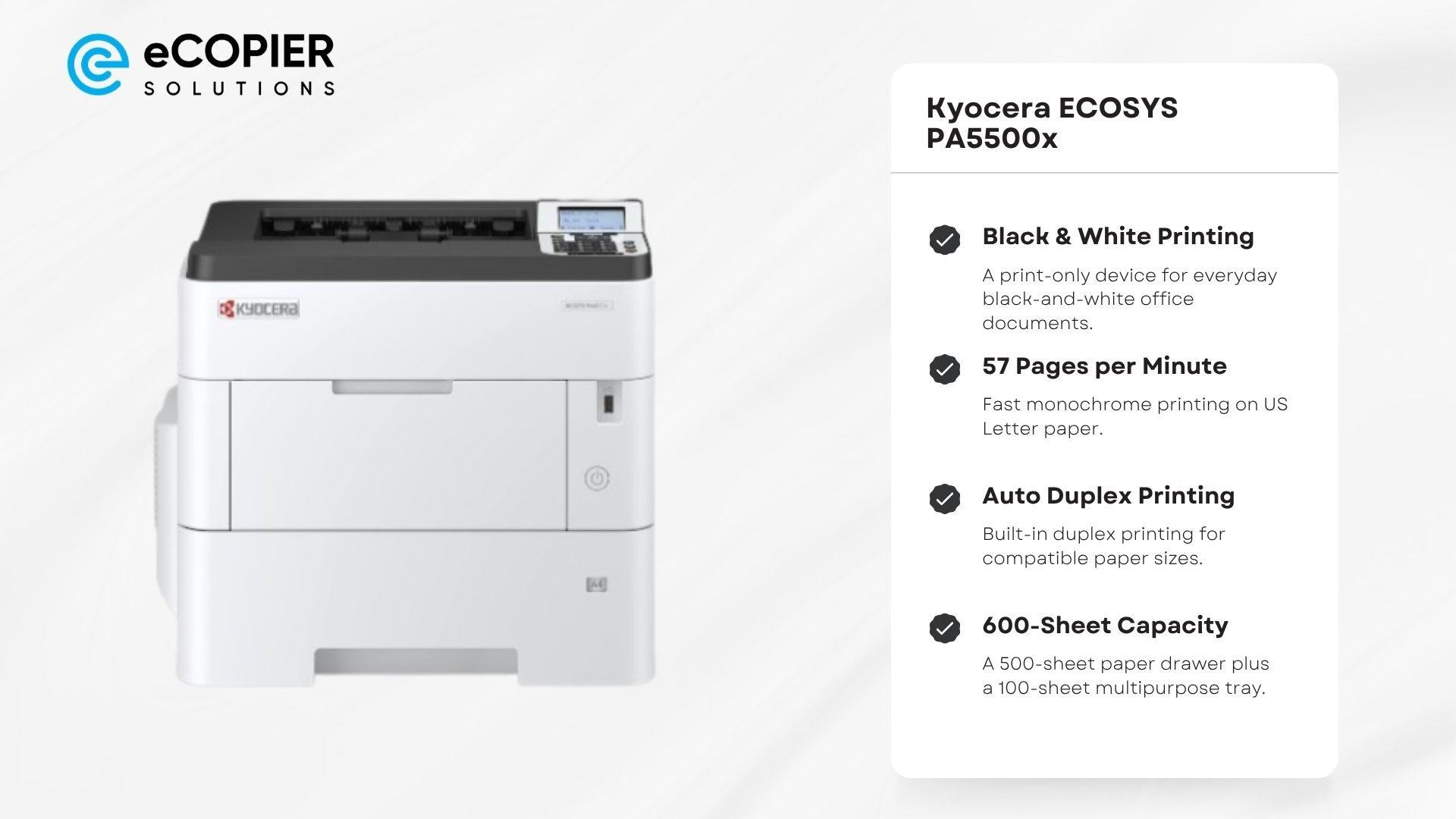
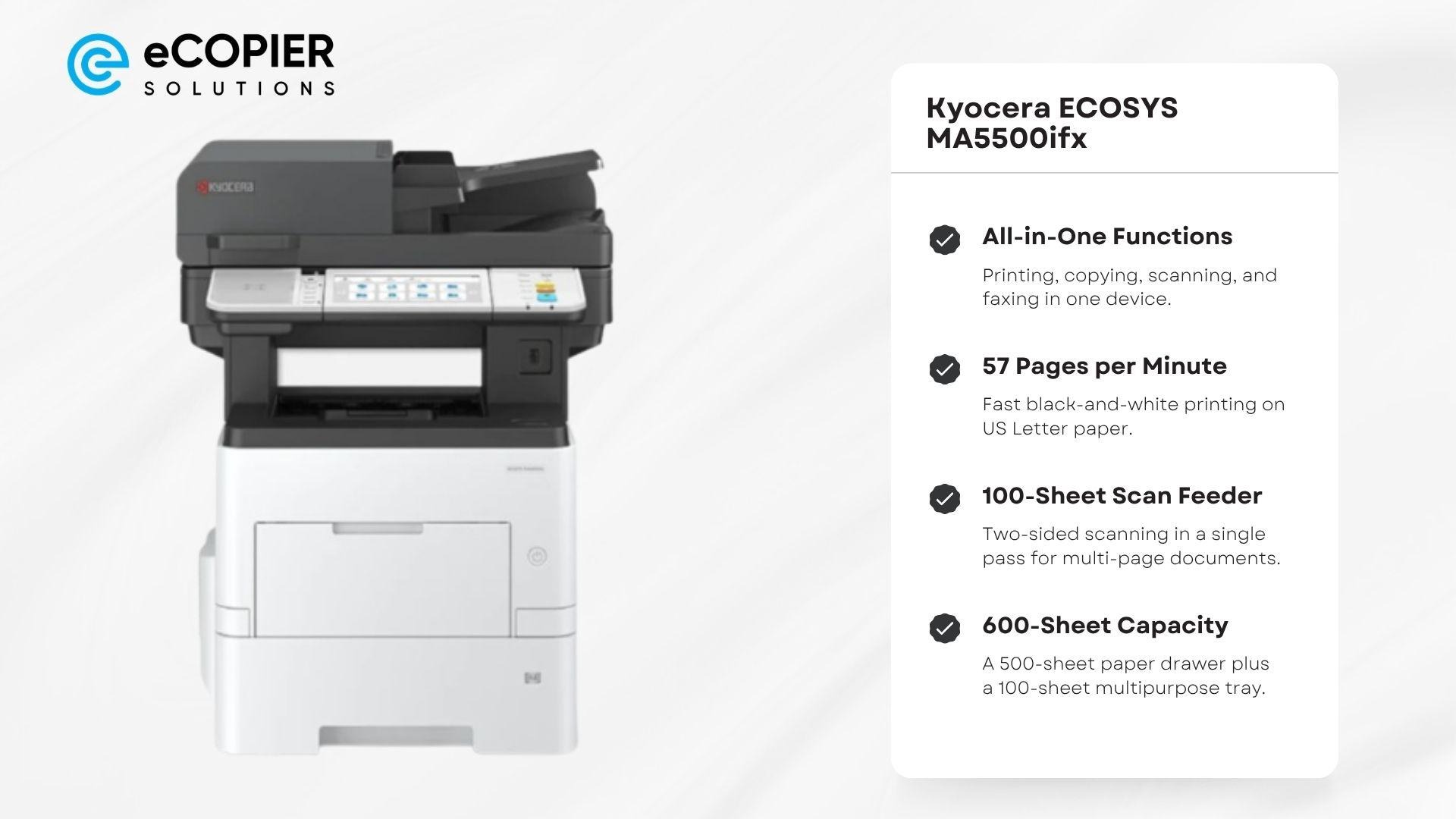
Extra functions don’t automatically make an MFP slower. The print-only Kyocera PA5500x and multifunction MA5500ifx both have a published rating of 57 ppm on US Letter.
So, we’d compare office printer speeds at the model level before choosing either type.
The jobs your team sends matter too. First-page time makes a difference for short documents, while duplex speed affects longer, two-sided batches. The recommended monthly volume then helps you judge whether the machine suits regular use. Its maximum duty cycle is an upper limit.
For a single-function color laser printer, we’d also request a sample proposal with charts. That gives you something closer to your actual work to judge.
2. Purchase Price and Running Costs
Once you have models that can handle the workload, you can compare what they’ll cost over the same period. A lower purchase price may lose its appeal if supplies cost more with every page.
Ex: 2,000 pages monthly across 36 months equals 72,000 pages. An assumed one-cent difference in supply costs per page adds up to $720. The calculation shows why small differences matter, although actual quotes determine which setup costs less.
Your existing equipment affects that total. A suitable scanner you already own adds no new purchase expense, but its running costs still count.
Some lease payments already cover toner and maintenance. Our guide explains what a copier lease includes, so you can identify those expenses and avoid counting them twice.
Electricity is another expense, though the savings may be modest.
DOE’s December 2024 example estimated 34-36 in lifetime electricity savings for more efficient 25-image-per-minute color MFPs against a less-efficient example. It assumed four years of use and 11 cents per kWh. This compares efficiency levels within the MFP category.
3. Office Space and Paper Size
Even a machine that fits your workload and budget needs a practical place in the office. A single-function printer may fit beside a workstation. An MFP could save space if it replaces separate equipment.
Either way, the measurements need to allow for open trays and service access. Staff also need room to load documents comfortably.
Paper size deserves a check before you order. A machine limited to Letter and Legal cannot handle 11-by-17-inch Ledger documents, however well it fits the available space.
4. Access Controls and Secure Print Release
The printer’s location also affects who can reach printed documents. In a shared area, an authenticated print release can hold a job until its owner arrives.
For example, UPMC reported that tap-and-print prevented 4,474,204 abandoned pages from being printed during 2023. Employees had to confirm their jobs at the device before printing began.
That benefit came from the release process. We’d check whether either proposed model supports it, along with firmware support and administrator controls. Permissions for the MFP print queue and scan destinations need attention as well.
5. Repairs and Service Coverage
After those checks, there’s one more practical question to settle with the provider. What happens when the machine needs a repair?
A shared MFP may support several daily tasks, so an interruption can affect more people. The fault determines which functions remain available. Your agreement should explain covered repairs and response times, along with any temporary replacement or backup arrangements.
At the Maserati dealership, General Sales Manager Chris Dooley wanted his team to spend less time dealing with printer problems. eCopier took care of the equipment and ongoing support, so staff had fewer issues to handle themselves.
Their experience is an example of how eCopier supports a document-heavy business beyond the initial installation.
Which Printer Setup Fits Your Office?
A print-only device may be enough if your office already has a reliable way to scan documents. An MFP makes more sense when staff regularly need those functions together. For a larger office, a combination may work best.
These examples can help you decide:
- You already have a working scanner: A single-function monochrome printer may be enough if staff mostly print text documents. You can keep the scanner you already use.
- Your team regularly scans and copies paperwork: An accounts team might need to scan invoices and copy supplier documents throughout the day. The best MFP printer for that team would handle both tasks without separate machines.
- Some staff need a printer nearby: Most employees could share an MFP, while reception has a dedicated printer for documents needed right away.
Find the Right Office Printer With eCopier Solutions
You don’t need to have a model picked out before you speak with us. At eCopier Solutions, we’ll help you work out whether your office needs an MFP or a print-only device based on how your team handles paperwork.
Our printer and copier leasing options can bring the equipment and ongoing support into one arrangement. Depending on your plan, that can also mean fewer supply orders and repair issues for your staff to handle.
We’ll explain what your quote covers and help you compare suitable options. You’ll have a clear proposal to review before you commit, with support available after installation.
Conclusion
The choice between an MFP and a single-function printer comes down to what your office needs each day. If your scanner still works well, a print-only device may be enough. If staff regularly scan and copy, an MFP could make their work easier.
Contact us for a free quote on the right printer for your office.
FAQs
Can an MFP Scan or Copy Without a Computer?
Yes, many MFPs let you copy or scan through the machine’s controls without a computer. However, scan-to-email usually needs a network connection and account setup. The available options depend on the model.
Can a Phone Scanner Replace an MFP?
A phone app may be enough for occasional scans, but you’ll still need equipment to print or make paper copies. For work documents, your company should approve the app and where it stores files.
What Should a Small Business Check Before Buying a Used MFP?
Your first checks should cover service history and whether parts are still available. We’d also request sample output and review the warranty. The best MFP printer for small business use needs dependable support, even when bought used.
Does an MFP Need a Phone Line to Send Faxes?
Traditional faxing generally needs a compatible phone connection. Internet fax services work differently and may require a separate account. Some MFPs have no fax function, so check the model before buying.